 Install with Gale

🔨 Better Build Menu
Move and resize the build menu, see every piece's name and a 3D picture of it, get its cost and description beside the cursor, search with more than one word, build a modded hammer's pieces with the game's hammer, hide the game's own pieces, and open the menu without lag however many pieces you have.
💶 Donations:
If you enjoy using this Valheim mod, please consider making a small donation to help support its development and future updates.
Even £1 or $1 would be greatly appreciated and would help more than you might think!
Thank you for your support, and happy gaming! ⚔️ ...... (A Paypal account is NOT required!)

🔥 Features:
- No lag: the piece grid only makes buttons for the rows you can see and reuses them as you scroll, so opening the menu, changing tabs and searching stay quick even with a lot of modded pieces.
- Move: drag the build menu by any empty space on it.
- Resize: move the mouse over the lower-right corner of the build menu and drag the button that shows there. The grid fills the new size.
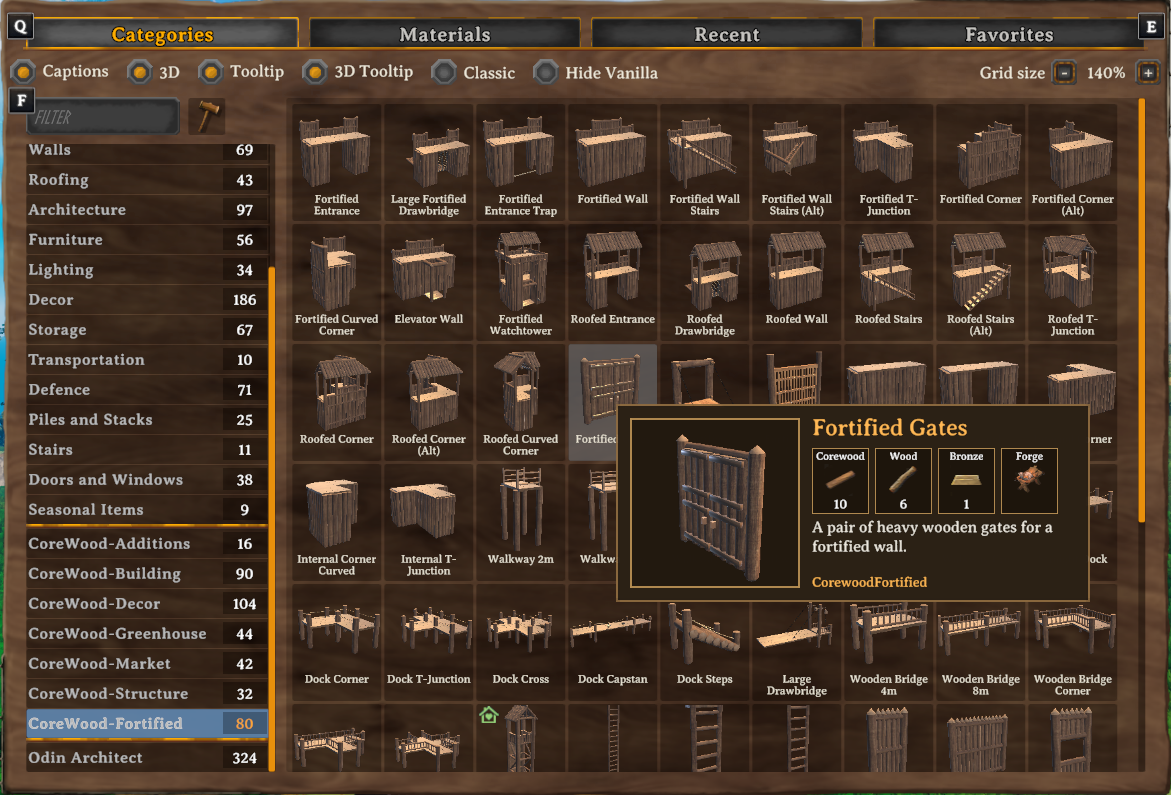
- Captions: the name of every piece is printed below its picture, so you can spot what you want without hovering over each one.
- 3D pictures: grid cells show a small 3D render of each piece rather than the flat icon. Renders are built gradually as pieces scroll into sight, so the menu never stalls. Pieces without a mesh to render, like the hoe's terrain tools, stay as icons.
- Hover tooltip: hover over a piece for a box next to the mouse with its name, a slowly rotating 3D view, how much of each material you have compared with what it costs, the crafting station it needs (red when none is near), and its description. With a controller it appears next to the selected piece.
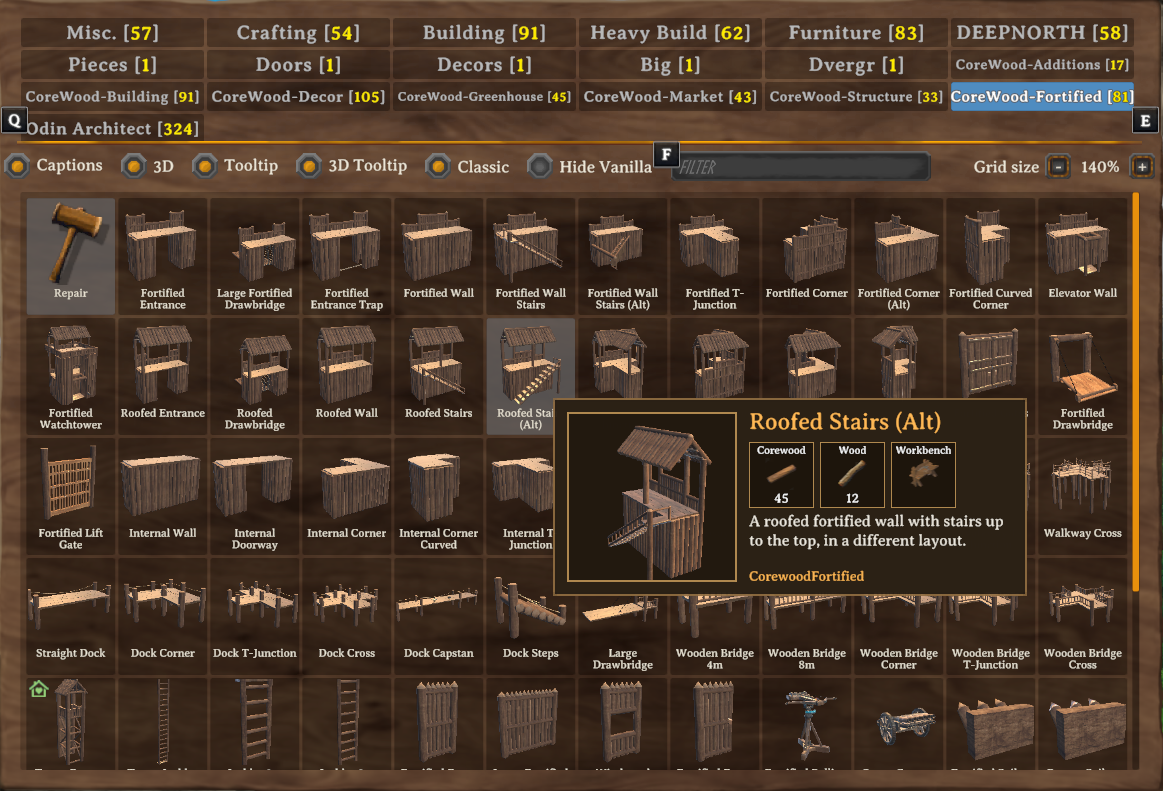
- Classic layout: tick Classic at the top of the build menu for the pre-1.0 arrangement: category tabs (Misc, Crafting, Building, Furniture plus any that mods add) along the top with piece counts, wrapping onto extra rows when there are more than fit, stepped through with Q and E (LB and RB on a controller), and no tag column. 3D pictures, captions, the tooltip, search, moving and resizing carry on working, and a search covers every category.
- Grid size: make the cells bigger with the - and + buttons at the top of the build menu, from 100% to 200% of the game's size.
- Modded hammer pieces: the pieces of a mod that builds with its own hammer (for example Odin's Hammer from OdinArchitect) are added to the game's hammer too, all together under one tag in the By Usage tab named after the mod (for example Odin Architect). The classic layout gives the mod a tab of its own. Other tools, such as a modded hoe, are left alone. The mod's own hammer keeps working. The Modded Hammer Pieces setting turns this off.
- Hide Vanilla: tick Hide Vanilla at the top of the build menu and it shows only pieces that mods add, leaving out the game's own (the repair and remove tools stay), with the counts to match and tags left empty hidden.
- Quick options: tick boxes at the top of the build menu switch the captions (Captions), 3D pictures (3D), the tooltip (Tooltip), the tooltip's 3D view (3D Tooltip), the classic layout (Classic) and Hide Vanilla on and off.
- No-cost play (the world setting or the
nocostcommand) shows everything as buildable. - Better search: every word you type must appear in the name of the piece or one of its materials, in any order, so
stone wallorwood ironfind what you'd expect. The unmodded search can be picked in the settings instead. - Search by mod: start a word with
@to see one mod's pieces, for example@clutter, or@valheimfor the unmodded ones. It is checked against the mod's title, plugin ID and dll file name, and mixes with ordinary words, so@clutter shelfworks too. - Search by material: start a word with
!to see only pieces whose recipe uses a matching material, for example!copperor!finewood. Combine it with the rest:!blackmetal @valheim gate. - The position and size are saved, and come back the next time you play.
⚙️ Configuration:
- Enable Plugin turns the mod on or off. This is a local setting and needs a game restart.
- Panel: turn moving and resizing on or off, and set the position and size by hand. The build menu starts taller than the game's (Panel Extra Height 260). Set them to 0 for the game's position and size. Classic Layout (off) switches to the pre-1.0 layout with category tabs, Hide Vanilla (off) shows only modded pieces, and Modded Hammer Pieces (on) puts a modded hammer's pieces on the game's hammer.
- Grid: Show Captions (on), Grid 3D Pictures (on) and Grid Size (145%).
- Tooltip: Tooltip At Cursor (on) and 3D In Tooltip (on).
- Search Mode:
Advanced(multi-word) orVanilla(the game's search). - Change them in game (with the tick boxes and buttons at the top of the build menu, Configuration Manager or the mod settings menu, F7) or by editing
MagicMike.BetterBuildMenu.cfg. Changes show straight away.
🌐 Multiplayer:
- Client side only. You can join any server with it, and other players do not need it.
📦 Requirements:
⚠️ Incompatibilities:
- Not for use with any plugin that takes over the build menu.
💻 Installation:
Automatic Install
- Plugin is created to be installed with r2modman or Gale. For Nexus downloads you will need to install manually.
Manual Install
- Un-zip and drag the
pluginsfolder into yourBepInExfolder.
💥 Plugins Created by Magic Mike:
- Corewood Extras
- Corewood Fortified
- Corewood Additions
- My Dirty Hoe
- Chest Preview
- YabbaDabbaDoo
- Better Build Menu
- Better Crafting
- Better Equip Slots
- Extra Inventory Slots
- Village Plebs
- Body Replacer