 Install with Gale
ForgePlanner
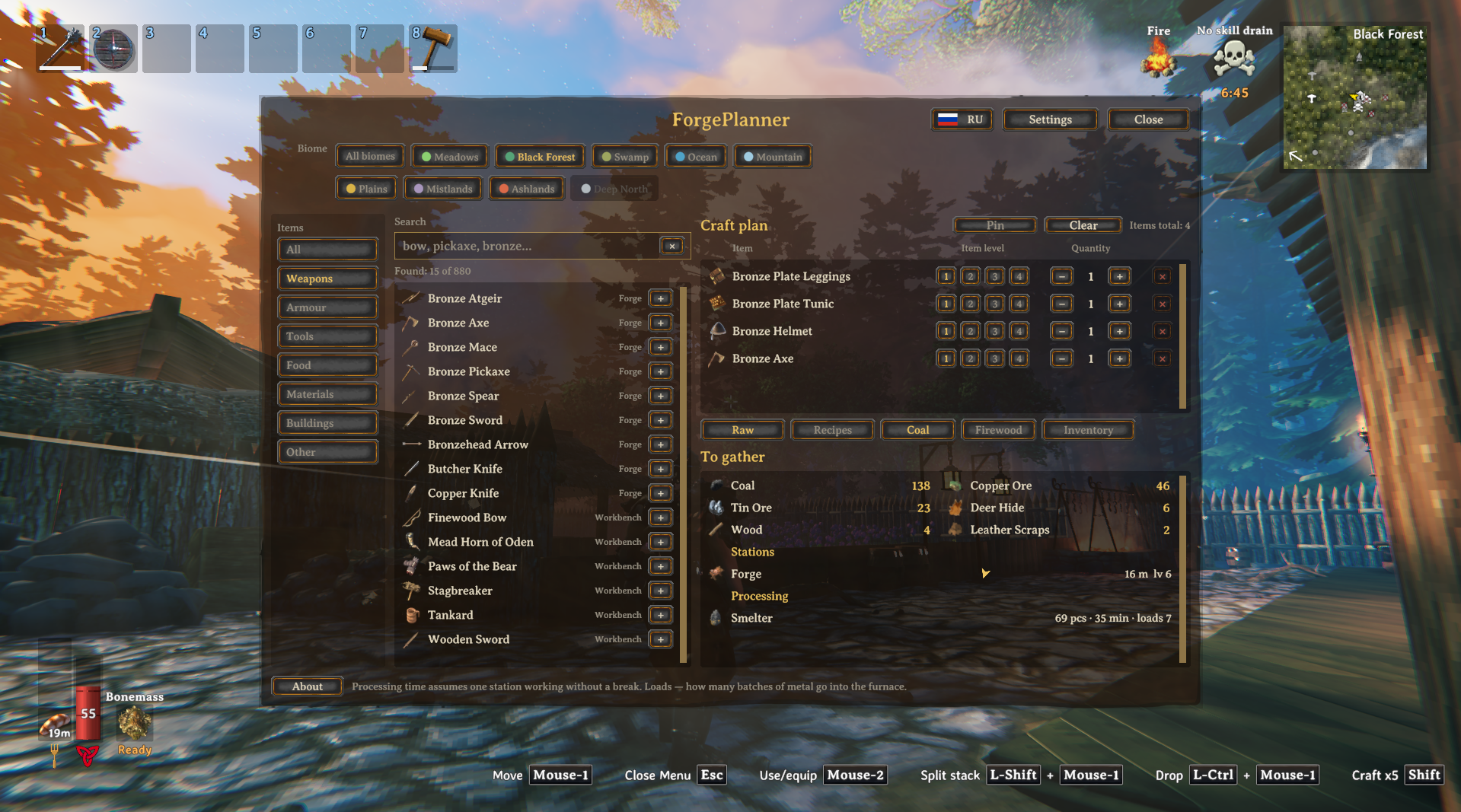
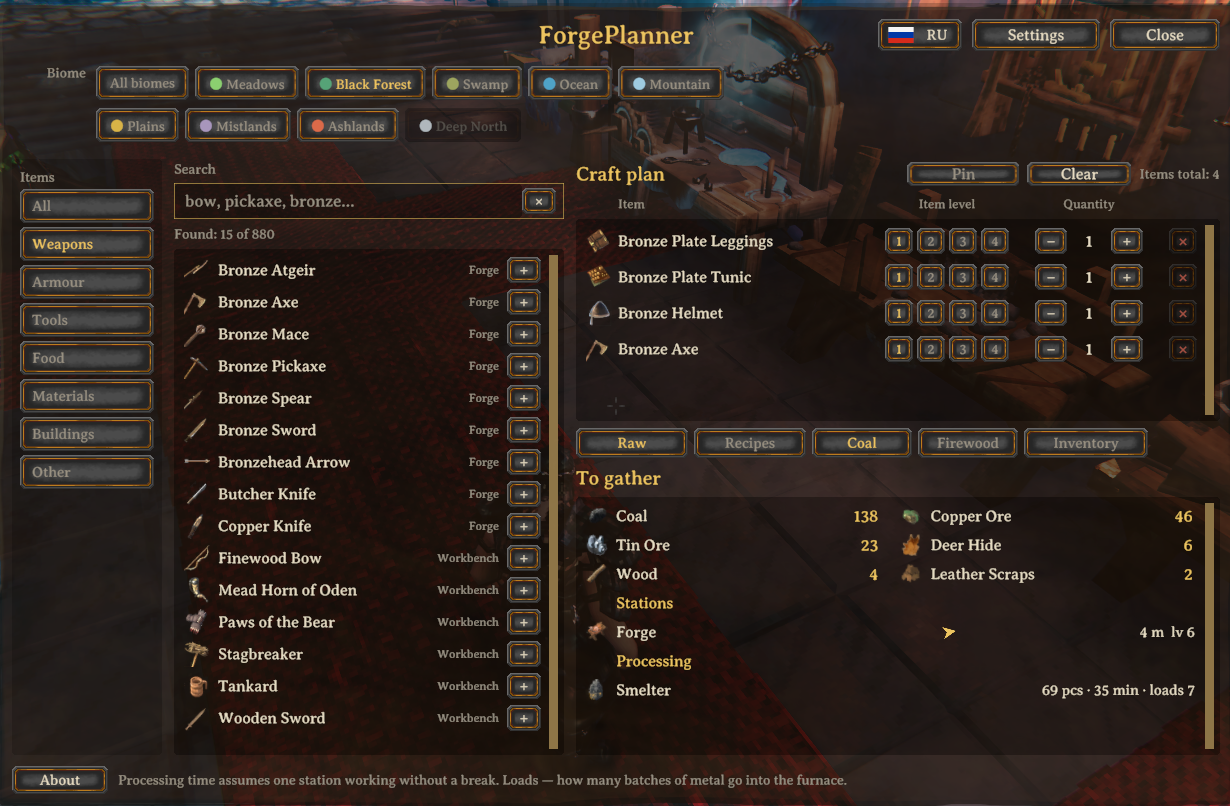
A crafting planner that lives inside Valheim. Press F7, build a shopping list, and see exactly how much ore, wood and hide you need — including the smelting, the coal, and which station you have to stand at.
Works with PlanBuild: a plan totem goes into the plan as one row, see below.
Everything is read from your running game: recipes, upgrade costs, conversions, item names, icons, trader price lists and your language. Nothing about the game is hardcoded, so the numbers keep matching after a patch instead of going quietly stale.

What it does
- Plan several items at once. Three bronze picks and two maces, not one
item at a time. Press
+or double-click a row to add it. - Quality levels 1–4. The upgrade surcharge is taken from the game, not guessed. Valheim doubles it per level (1, 2, 4), which is where most spreadsheets and wikis get it wrong.
- Raw materials or recipe materials. Either break everything down to ore, wood and hide, or stop at what the workbench actually asks for.
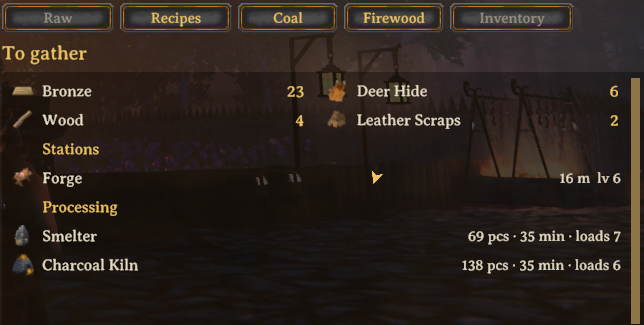
- Smelting included. Coal, smelting time and how many loads each station needs.
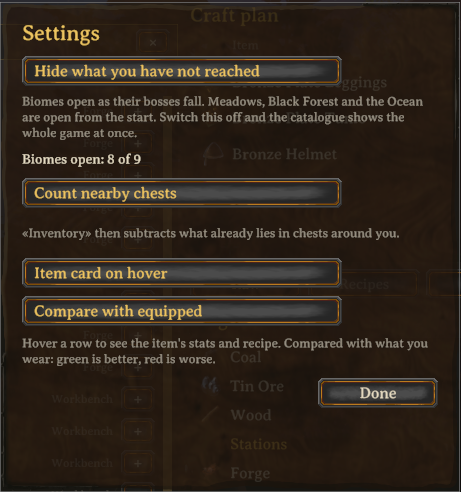
- Counts what you already have. Your backpack plus nearby chests.
- Knows what is already made. Four iron swords at level 2, two of the group already hold level 1 ones: open the row and mark them, and the plan charges those two only for the upgrade. See below.
- Keeps your plan. The plan and the pinned list survive quitting the game, one per world and character.
- Tells you which stations you need — and whether one is standing nearby, how far, in which direction, and at what level. If the one you have is too low, it says which level the plan wants. If there is none, one button adds the station itself to the plan.
- Names the trader for anything you cannot find. Some materials drop nowhere; the line says who sells it and for how much.
- Buildings too. Walls, floors, workstations — the hammer menu is in the same catalogue.
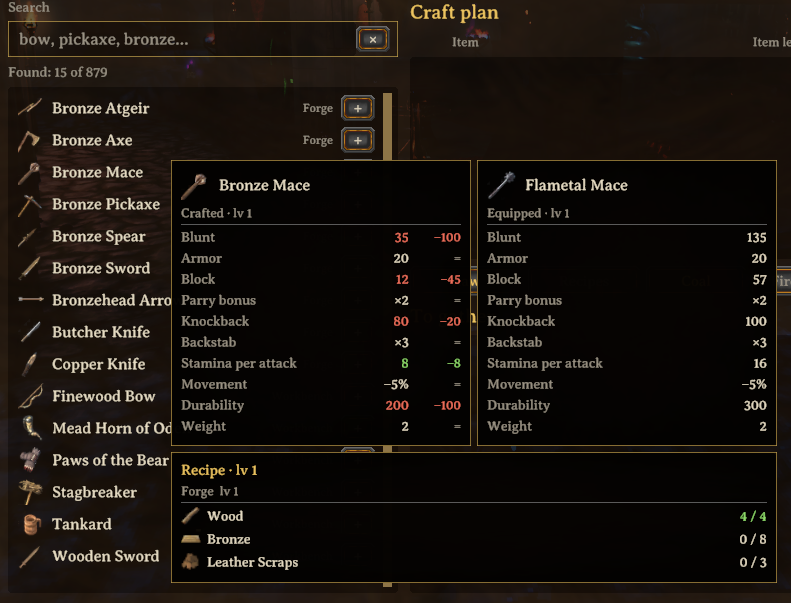
- An item card on hover, compared with what you wear. See below.
- Pin the plan and keep it on screen while you gather. See below.
- Works with PlanBuild: its plan totems go into the plan. See below.
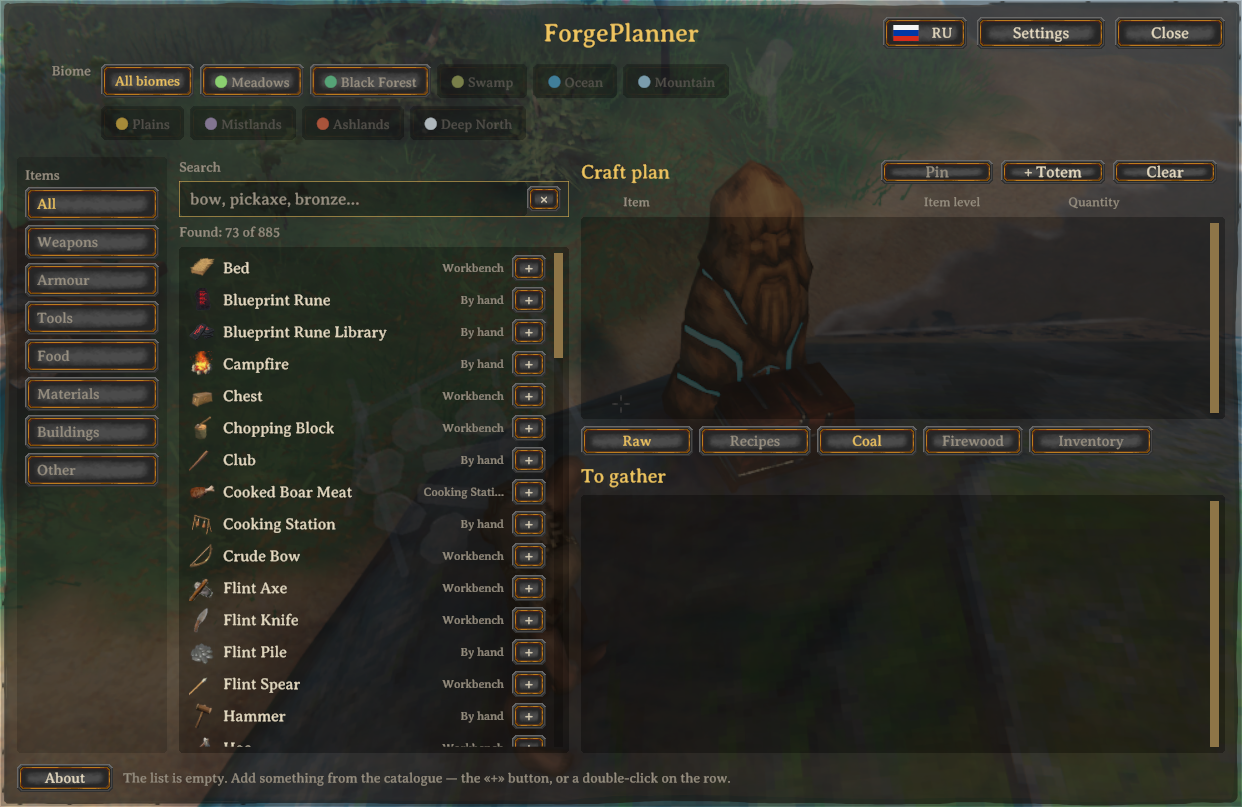
- Filter by biome, with the same colours as the website.
- Search and eight tabs: All, plus Weapons, Armour, Tools, Food, Materials, Buildings and Other. Search works in English and Russian whatever language the game is running in.
- English or Russian window, switched with one button.

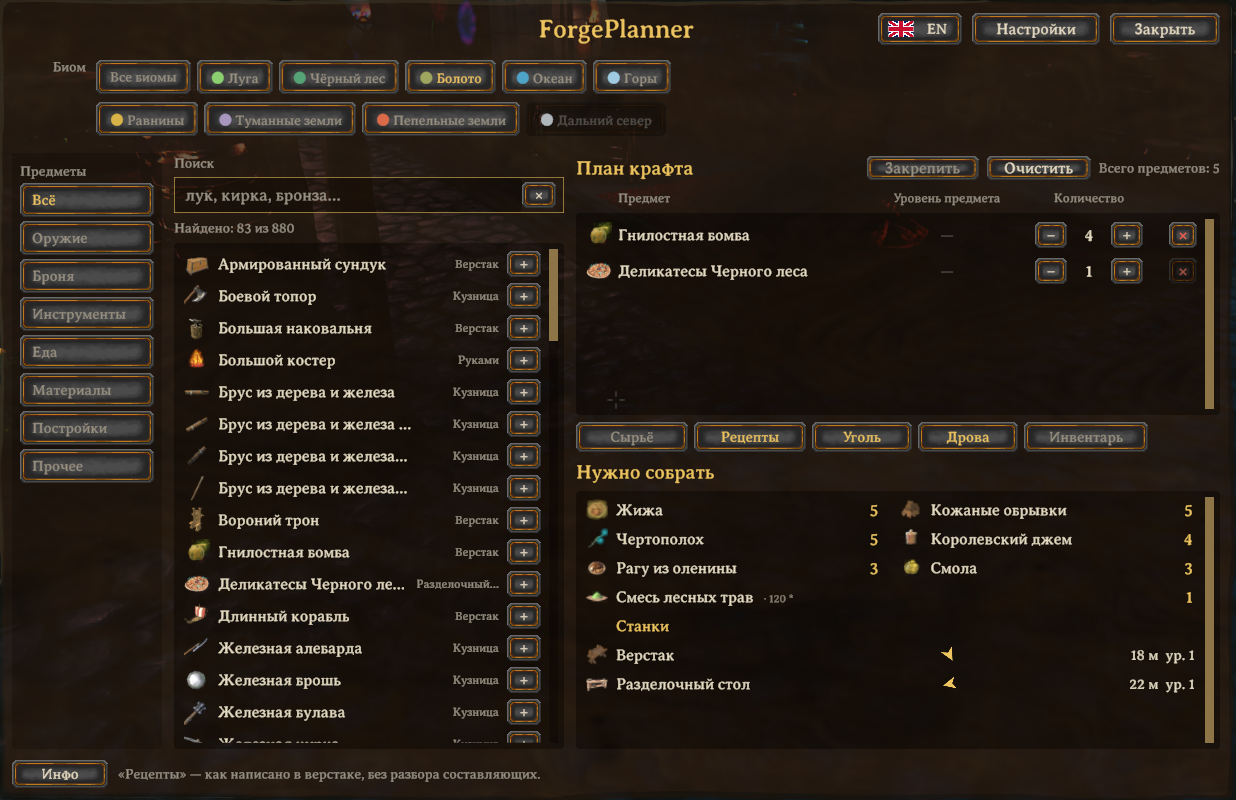
Each row of the plan is the item, its quality level and how many; the columns are labelled above the list. Below it: everything the plan costs, the stations it needs with distance and direction, and what has to go through a smelter or a kiln first.
The item card
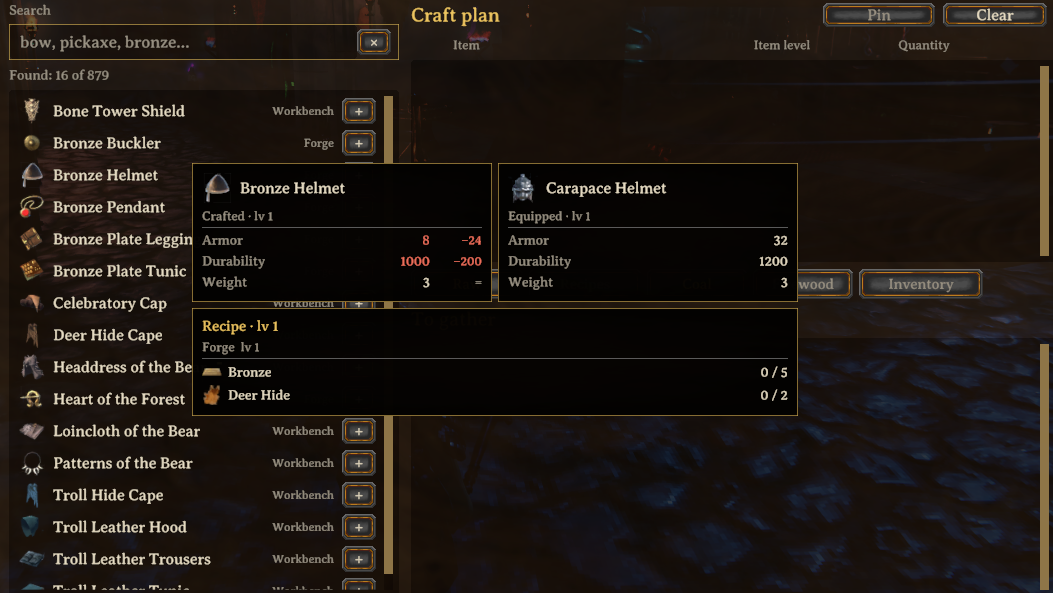
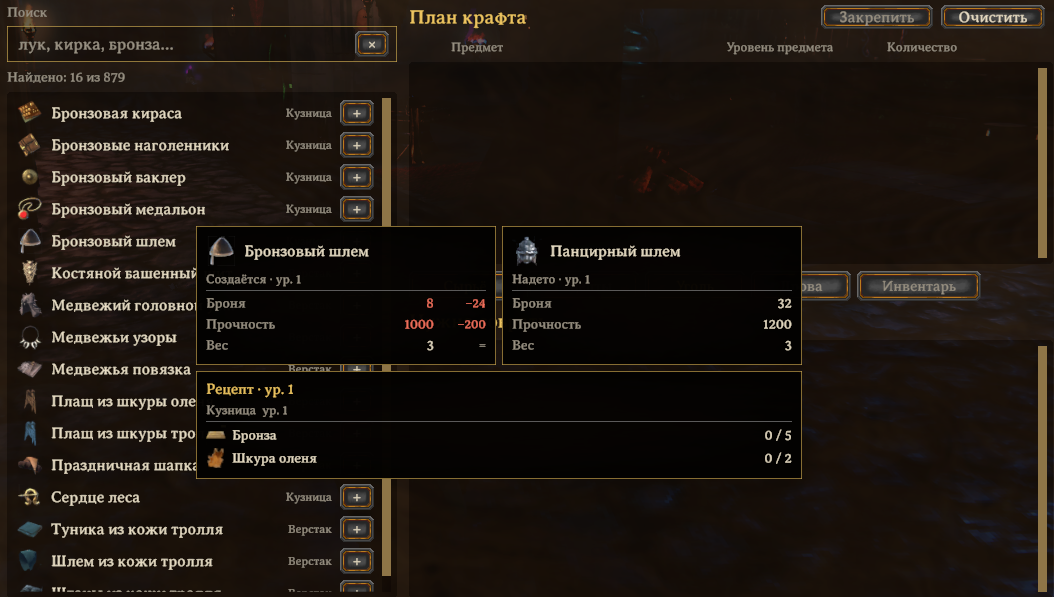
Hover a row to see the item card. Stats of the item at the quality you
picked, side by side with what you are wearing in the same slot: green with a
+ where it is better, red with a − where it is worse, = where they match.
Damage, armour, block, resistances, durability, weight, movement penalty — the
same numbers the game shows, computed by the game itself. Below them, the recipe
with what is already in your backpack. For things you cannot wear, the card is
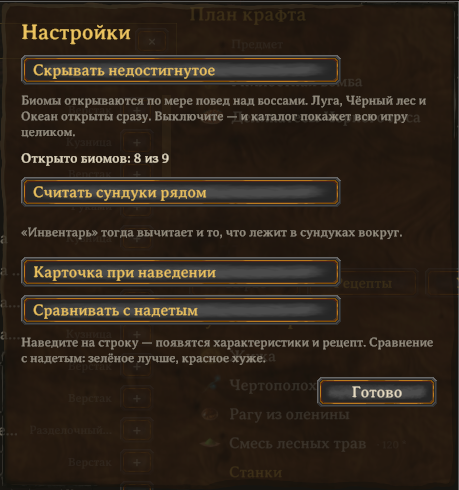
just the recipe. Comparison can be switched off in Settings.

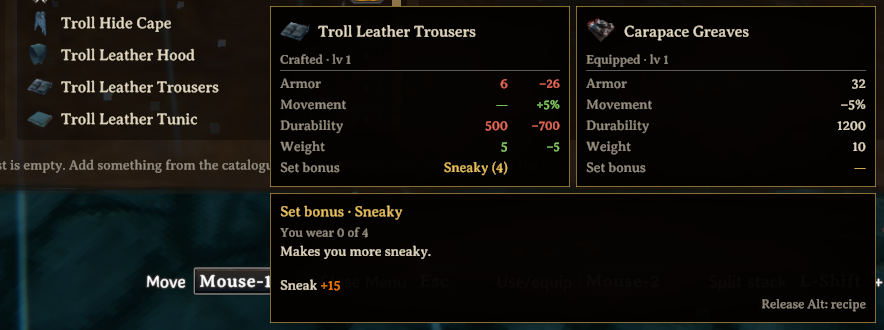
Hold Alt for the full text. The card names a set bonus or an effect —
Sneaky (4) — and some of those descriptions run to several lines. Hold
Alt and the recipe gives way to the whole text, the same one the game's own
tooltip shows, with how many pieces of the set you already wear. If the item
you wear has a different bonus, it is there too, so you see what you would give
up. The text comes in the game's language.

What is already made
A plan starts from nothing: four iron swords at level 2 is four swords crafted and four upgrades paid. On a server that is rarely true — two of the group already carry level 1 swords, someone has a banded shield.
Press the arrow next to the row, and it opens into one line per item: No.1, No.2, No.3, No.4, each with the level buttons up to the one you plan. Click 1 on a sword someone already has at level 1, and from then on the plan counts only its upgrade; click the planned level, and that one is done. Click the marked button again to clear it. A closed row says how many are already made.
The marks are part of the plan: they are saved with it and pinned with it.
Pin the plan
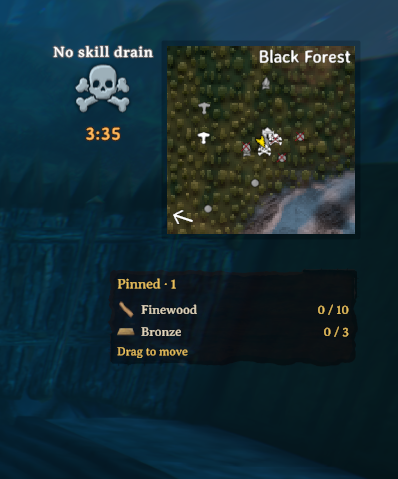
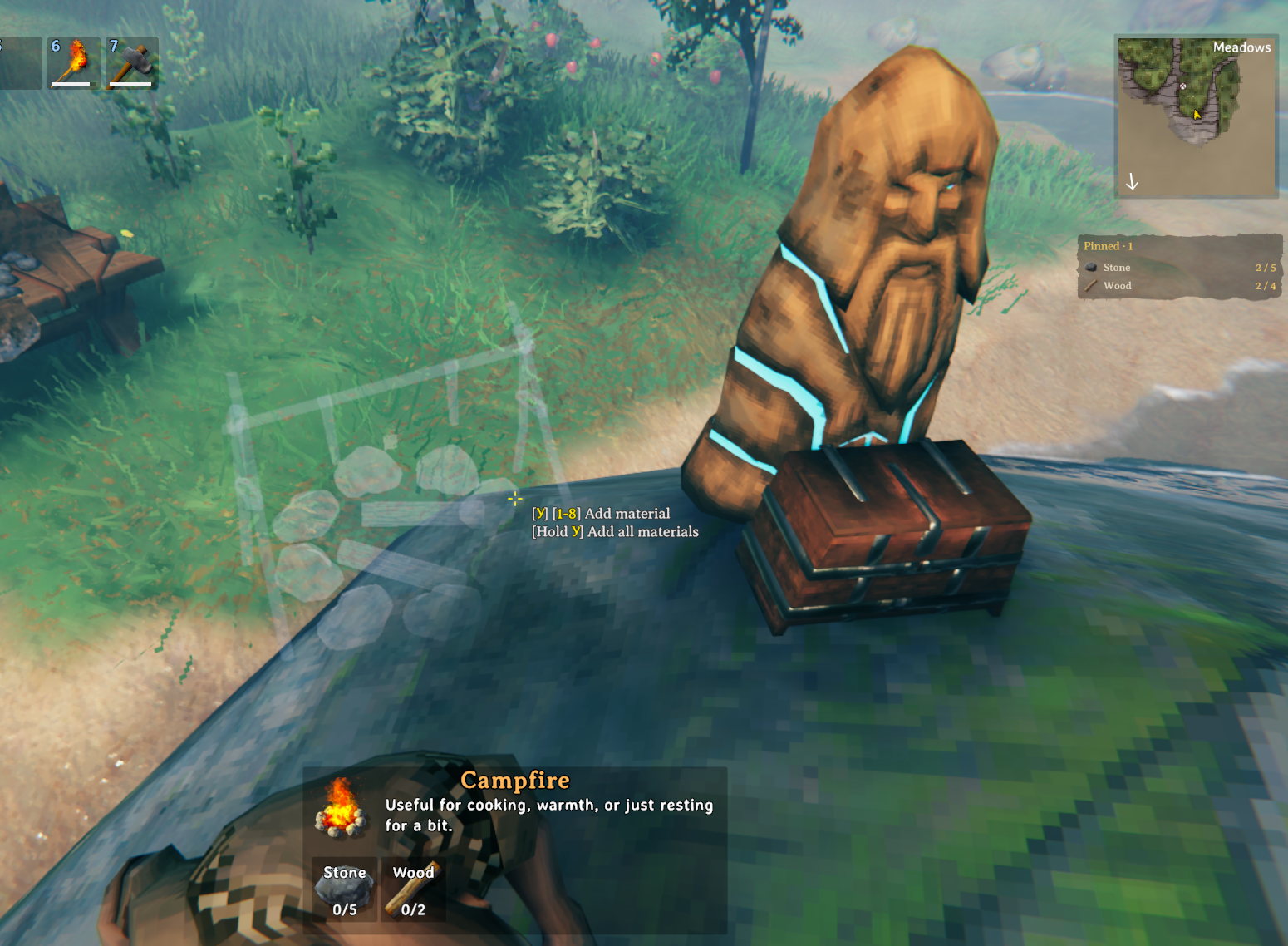
Pin the plan and close the window. A copy of it stays on screen in a small
panel and fills in as you gather — 1 / 10, so you can see both how far along
you are and how far there is to go. It counts your backpack only: the window
counts nearby chests as well, but out in the field the question is whether you
have it on you, not whether it is somewhere at home. It is a copy on purpose:
wiping the plan to price up something else does not wipe what you pinned.
Clicks pass straight through it. While the Esc menu is open you can drag it
somewhere else, make it bigger or smaller with − and +, or unpin it
with ×.
Under the title, the icons of what you pinned, so a line like Stone 0 / 94 says what it is for. Gathered lines sink to the bottom and dim; set HideGathered in the config to drop them from the panel altogether.

Works with PlanBuild
With PlanBuild installed, a + Totem button appears above the plan. Stand near a plan totem and press it: the totem becomes one row of the plan, and its contents are whatever the plans around it still miss, minus what is already in the totem — the same list the totem shows on hover.
The row keeps itself up to date. Bring planks to the totem or let it finish a plan, and the row shrinks; the pinned panel follows it too. Under the row you see what the totem is building, piece by piece: "Campfire ×2 — 10 Stone, 4 Wood". Its materials join the rest of the plan in one total and break down to raw resources like everything else, and the stations its plans need show up with the others.

A planned piece inside the radius of two totems is counted once, however many of those totems are in the plan. PlanBuild is optional: without it the button is not there and nothing else changes.
Made for a group
Alone the sums are small. On a shared server they are the boring part of the evening: how much iron the base still owes for four sets of armour, how much coal that turns into, how many trips to the smelter that means, and whether anyone remembered to bring fine wood.
Plan the whole order in one go — four maces, three shields, two sets of armour — stand next to the storage, and the window subtracts what is already there. It counts your own backpack and every chest within range, so a base's shared storage is read once for the whole plan instead of being tallied chest by chest on a second monitor.
A wiki you do not have to alt-tab to
It does not replace the Valheim wiki and does not try to: no lore, no drop tables, no strategy, no pictures of bosses.
What it does carry is the part you actually look up in the middle of a session. What a thing costs. What the same thing costs at quality 2, 3 and 4. Which station it needs and at which level. What has to go through a smelter or a kiln first, and how long that takes. Which biome a material comes from. How the item compares with what you wear. And, for the handful that drop nowhere at all, which trader sells it and for how many coins.
A trimmed wiki, then — but the trimmed part is the part you were going to search for anyway, and this one is read from your own installation, so it cannot fall behind a game patch the way a wiki page can.
Spoiler-free by default
A planner opened in your first hour would otherwise retell the whole game: a thousand entries with flametal weapons at the top. So by default the catalogue shows only what your character has discovered — the same recipes the game's own crafting menu shows. Pick up a new material, and what it goes into appears. The mod asks the game what you know rather than guessing.
Settings has two more modes, one click each:
- By bosses — for looking ahead without looking too far. A biome opens when the boss before it falls; Meadows, Black Forest and Ocean are open from the start. The victory keys are read from the boss prefabs themselves, so the mod does not carry a list of boss names that a future update could quietly invalidate.
- Everything — the whole game at once.
Biomes with nothing open yet dim rather than disappear.

Usage
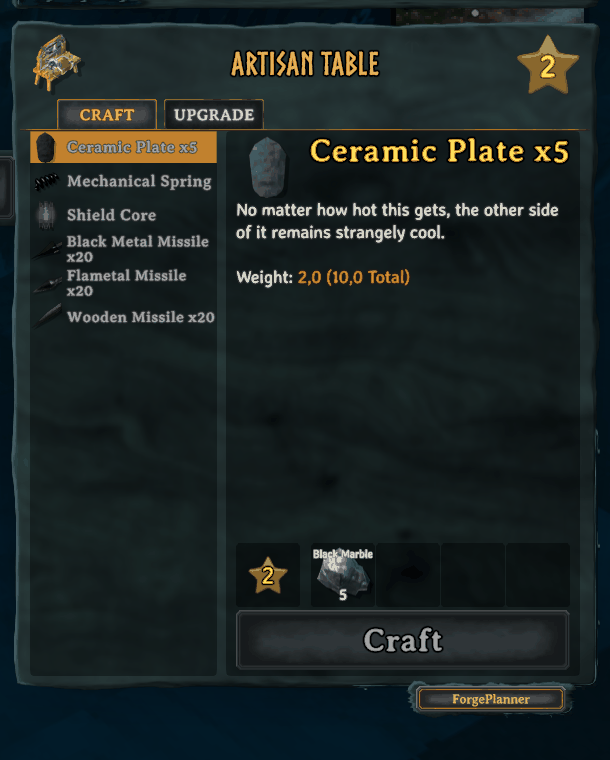
Press F7 in a loaded world, or use the ForgePlanner button on any
crafting station's panel. The cursor is released while the window is open, and
the game behaves exactly as it does when you press E at a workbench: no
swinging, building, walking or hotbar switching by accident. Press F7 or
Esc to close.

Installation
With a mod manager (r2modman, Thunderstore Mod Manager, Vortex), install it like any other mod. By hand:
- Install BepInExPack Valheim 5.4.2350 or newer.
- Drop
Forgeplan.dllintoBepInEx/plugins/.
Client-side only. It does not touch saves, world data or networking, so it is safe to add to an existing world and safe to remove again — uninstalling leaves nothing behind but the config file and your saved plans, small text files in BepInEx/config/forgeplanner/.
Configuration
BepInEx/config/dev.forgeplanner.forgeplan.cfg, written on first run.
| Section | Key | Default | Meaning |
|---|---|---|---|
General |
Open |
F7 |
Hotkey that opens the planner |
General |
Russian |
false |
Window labels in Russian |
General |
Spoilers |
Discovered |
What the catalogue shows: Discovered, Bosses or Off |
Stock |
CountChests |
true |
Count nearby chests, not just your backpack |
Stock |
Radius |
20 |
How far a chest counts as yours, in metres |
Station |
Button |
true |
Show the ForgePlanner button on station panels |
Station |
Corner |
BottomRight |
Which side of the panel the button's shelf sits on |
Station |
OffsetX |
14 |
Shelf offset from the panel edge, in points |
Station |
DropDown |
0 |
How far below the panel edge to drop the shelf |
Pin |
Enabled |
true |
Keep the pinned plan on screen after the planner is closed |
Pin |
Corner |
TopRight |
Which corner of the screen the pinned list sits in |
Pin |
OffsetX |
42 |
Distance from the side of the screen; written by dragging the panel |
Pin |
OffsetY |
268 |
Distance from the top or bottom; the default clears the minimap |
Pin |
RefreshSeconds |
1 |
How often the remaining amounts are recounted |
Pin |
MaxRows |
8 |
How many materials to list before collapsing the rest |
Pin |
Scale |
1 |
Size of the pinned panel, 0.6 to 2.5; written by its − and + buttons |
Pin |
HideGathered |
false |
Hide materials you already carry enough of, instead of moving them to the bottom |
Tooltip |
Enabled |
true |
Show the item card when hovering a row |
Tooltip |
Compare |
true |
Compare the hovered item with what you have equipped |
Tooltip |
DetailsKey |
LeftAlt |
Hold it over the card for the full set bonus and effects; None turns it off |
Debug |
SelfTest |
false |
Dump the parsed catalogue to the log on world load |
The Station keys are there for repair rather than taste: the crafting panel
belongs to the game, and a future Valheim update may move it. If the button ends
up in the wrong place, it can be put back without waiting for a new release of
the mod.
Companion website
forgeplanner.pages.dev runs the same calculation in a browser, for planning before you launch the game.
The two are kept honest about each other: the mod reads the live game, the site reads extracted game data, and a parity harness compares the catalogue, conversions and per-level costs entry by entry. Four real calculation bugs were found that way in a single day — potential idols counted as ingredients, bronze taken from scrap instead of ore, a five-ingot recipe beating the one-ingot one, and a wrong upgrade curve.
Progression is the one thing the site cannot do: it does not know what you have discovered or which bosses you have beaten.
Requirements
- Valheim 1.0.16 (tested against it)
- BepInExPack Valheim 5.4.2350 or newer
- Optional: PlanBuild 0.19.1 or newer, for totems in the plan
Where to find it
- Website: forgeplanner.pages.dev
- Thunderstore: Biozip/ForgePlanner
- Nexus Mods: ForgePlanner
- Hexium: Biozip/ForgePlanner
Licence
MIT. Not affiliated with Iron Gate Studio or Coffee Stain Publishing.
The window borrows the game's own font, panel and button art at runtime, so it
matches your UI scale and your language. It ships no Valheim assets of its own —
the few icons it does carry are its own, and LICENSE says which.
Support
The mod and the website are free and stay free: no ads, no accounts, no paid features, nothing held back for supporters. If ForgePlanner has saved you a few trips to the wiki and you feel like buying me a coffee, there is a Boosty page.