 Install with Gale
AI disclaimer: AI tools were used in the development of this mod.
VariaChestFocus
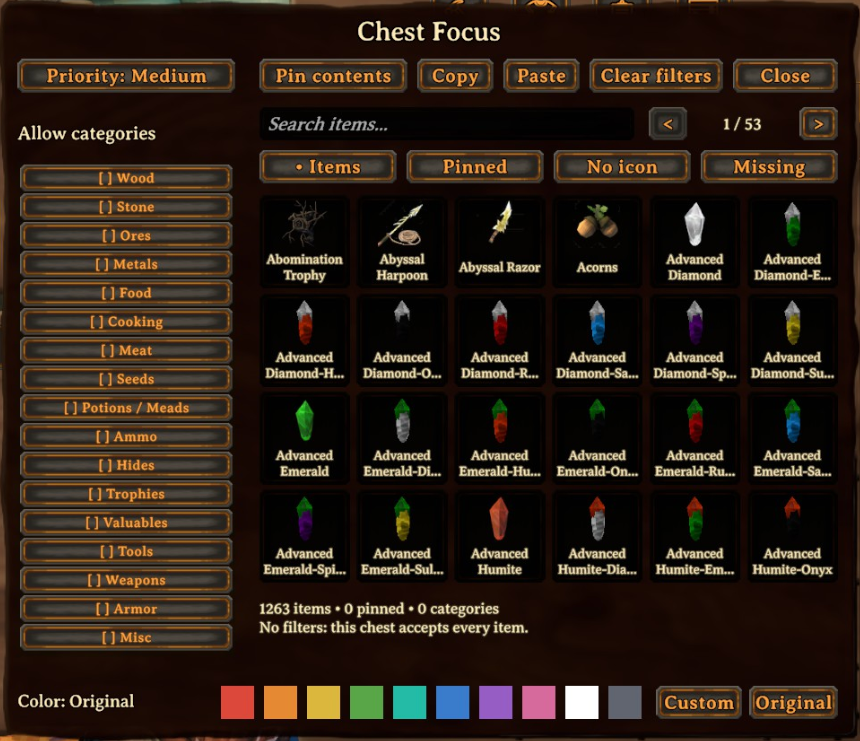
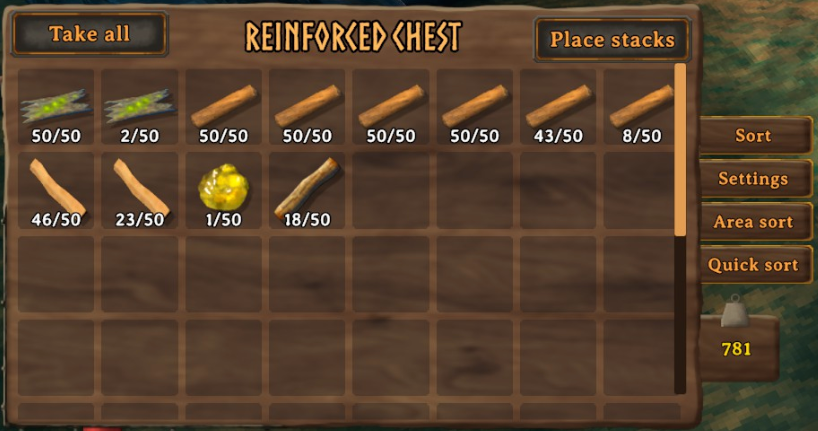
Choose what belongs in each chest, then use Quick sort to store your inventory or Area sort to sort items between nearby chests. Both buttons sit beside the chest grid, along with Sort and Settings. The H and Left Shift + H shortcuts also work with the inventory closed. Set allowed categories or individual items, choose which chests fill first, and give each chest a color.
Features
- Per-chest settings saved with each container
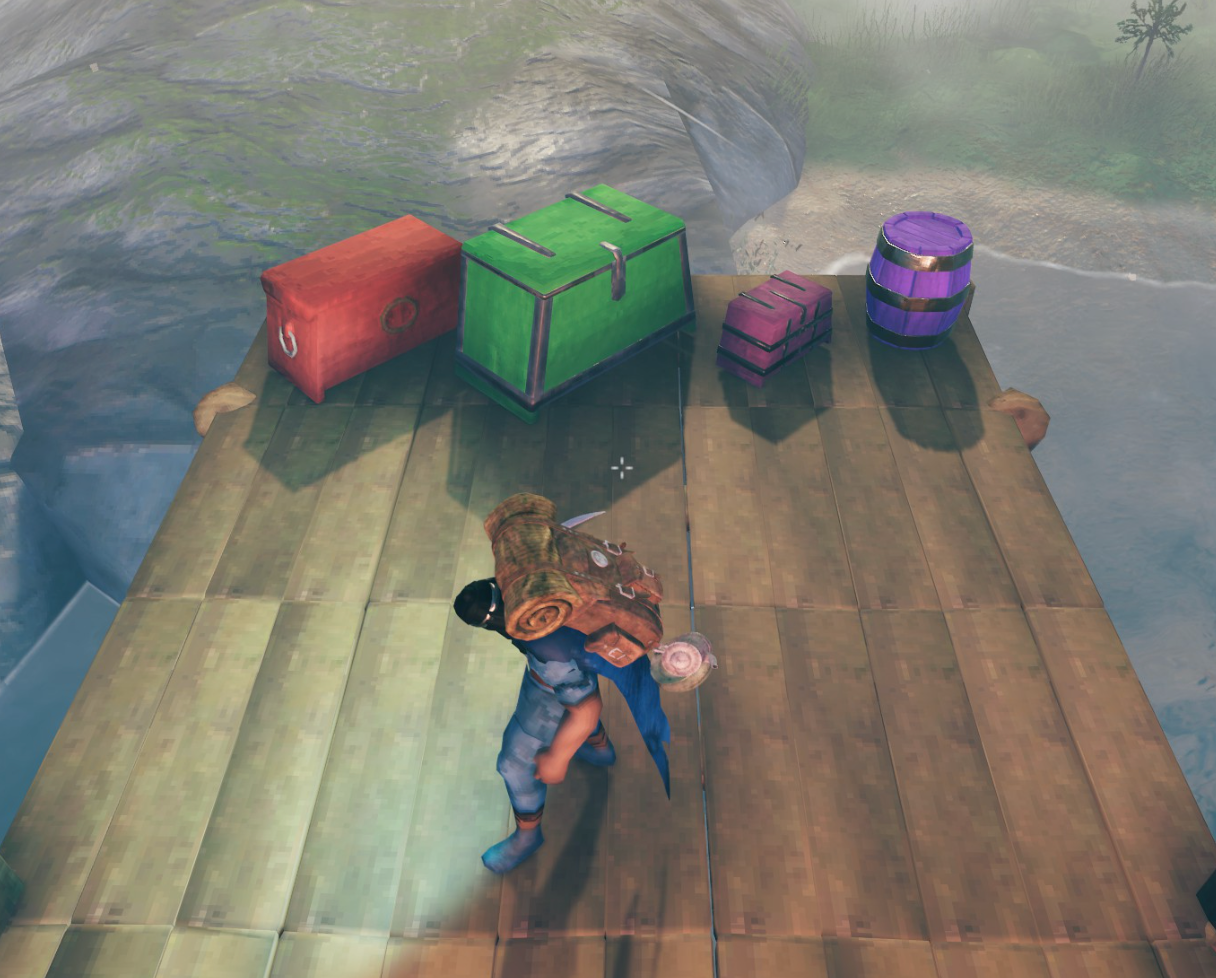
- Chest colors: ten palette swatches, a Custom color picker, and Original to restore the chest's appearance; saved per chest and shown to other clients running this version of the mod
- Categories (wood, ores, food, trophies, etc.) and a searchable item browser for vanilla and modded items
- Pin items: adds every item type currently in the chest to that chest’s allowlist (categories unchanged); useful after stocking a chest by hand
- Clear / Copy / Paste settings between chests
- Chest controls: Sort, Settings, Area sort, and Quick sort sit to the right of the grid, above the weight display, using its background artwork. Each button has an explanatory tooltip. Very short custom containers use a neighboring column to keep the weight display clear.
- Sort container: Sort arranges the open chest by item type, name, quality, and stack size, filling rows from the top left. Existing stacks and item data stay intact.
- Quick-sort order: filtered chests first, then unrestricted chests; Critical → High → Medium → Low within each group, nearest first on ties. Never excludes either kind.
- Hover summary: see the chest's priority, allowed categories, and pinned item count before opening it. Hidden when you don't have access.
- Quick sort button or keybind (default
H): moves player inventory into nearby allowed chests, preserving equipped items and AzuEPI favorites - Area sort button or keybind (default
Left Shift + H): moves items between nearby chests according to their filters and priority. Player inventory stays untouched. The buttons include your current open chest; the hotkeys work without opening any chest. - Hotbar protection: numbered slots 1–8 are skipped by default; toggle
QuickSort → ProtectHotbarto allow sorting from them - Filters apply when putting items in; other mods, such as AzuCraftyBoxes, can still take items out
- Caps for large bases: range, max chests, max moves per press
- Saved filters for missing modded items stay until you remove them
Compatibility
Requires BepInExPack Valheim 5.4.2351. Optional F1 configuration: Official BepInEx Configuration Manager 19.0.0. AzuEPI integration signatures are checked against AzuEPI 2.6.0; it remains optional.
- AzuContainerSizes (size changes) — uses the container's live inventory
- AzuCraftyBoxes — inbound filter only
- AzuEPI — quick-sort skips equipment slots, quick slots, favorited item types, and items in favorited inventory slots. Spare stacks in normal inventory can still be sorted unless favorited. Changes to favorites take effect on the next press. If the mod cannot read AzuEPI's protections, sorting pauses and logs a warning.
- AzuAutoStore — its global rules and this mod's per-chest filters both apply to deposits. Use different keybinds if you use both quick-sort functions.
Ship and cart storage is skipped. Crossplay must be disabled for BepInEx.
Config
BepInEx/config/com.varia.chestfocus.cfg or Azumatt Configuration Manager (F1):
| Setting | Default | Notes |
|---|---|---|
| Enabled | true | Master toggle |
| SortKeybind | H | Player inventory → nearby chests |
| ChestSortKeybind | H + LeftShift | Nearby chests → other nearby chests; personal keybind |
| ProtectHotbar | true | Skip numbered hotbar slots 1–8; personal setting, not server-synced |
| SortRange | 16 | Meters |
| MaxChests | 40 | Cap per press; chest-to-chest sorting counts both sources and destinations |
| MaxMoves | 60 | Successful transfers per press, including partial stacks |
Optional ServerSync: set LockConfiguration = true on the server to sync shared settings.
Version 0.1.15 protects the numbered 1–8 hotbar slots by default. In F1, set QuickSort → ProtectHotbar to false to allow quick-sort to store items from those slots. Equipped items, AzuEPI equipment/quick slots, and favorites stay protected. Changes apply to the next quick-sort press.
Version 0.1.13 changes the default quick-sort key to H, leaving G for Valheim's radial menu. On the first launch after upgrading, an existing plain G binding migrates to H; other shortcuts stay as configured. This migration runs once, so later manual rebindings are preserved.
Usage
- Open a chest → Settings, above the weight display to the right of the grid
- Set priority, toggle categories, search/toggle items
- Optionally Pin what’s already inside and choose a Color swatch or Custom at the bottom of the panel
- Close the panel (auto-saves if you own the chest)
- Click Quick sort to auto-store, or close the inventory and press H (or your bind) near storage
- Click Area sort to redistribute nearby chest contents, or close the inventory and press Left Shift + H
To tidy only one chest, open it and click Sort at the top of the side controls. This fills its live grid by item type, then alphabetically by displayed name, with higher quality and larger stacks first. It preserves separate stacks, including modded item data, and can arrange existing items that no longer match the chest's filter. It also works on Never chests. Finish dragging or splitting an item and close the settings panel before using any sort button.
An empty filter allows any item. Quick-sort tries filtered chests first, then puts remaining items into unrestricted chests. For example, a Low priority filtered chest fills before a Critical unrestricted chest. Within each group, higher priority comes first, with the nearest chest winning ties. Set priority to Never to exclude a chest from quick-sort. The old IncludeUnsetChests option no longer affects this order.
Chest-to-chest sorting uses the same range, chest cap, destination order, and move cap as H. It scans eligible storage around the player; no chest needs to be open when using the shortcut. Never, occupied, inaccessible, non-owned, ship/cart, and tombstone storage are excluded as both sources and destinations. The buttons allow your current open chest to participate while continuing to exclude all other occupied storage. The chest cap selects participants in the same filtered/priority/distance order before loading inventories.
Items already allowed in their source chest move only to a better destination: matching filtered storage ahead of unrestricted storage, or higher priority within the same group. Equally suitable chests keep their contents even if you stand closer to another chest, preventing repeated shuffling. Items excluded by their source's current filter can move to any allowed destination, including unrestricted storage. Full destinations leave overflow in its source; changing chest filters never discards items. For example, wood in an unrestricted drop-off chest moves into a matching wood chest, and wood in a Low wood chest can move into a High wood chest.
Both hotkeys run during gameplay with the inventory closed and pause while menus, chat, or the console capture input. Configure them separately under QuickSort in F1. ChestSortKeybind takes precedence if you assign the same shortcut to both actions. The buttons work while a chest is open and pause while dragging, splitting a stack, editing chest settings, or using those other menus. Buttons and shortcuts share the same sorting rules and feedback messages.
Chest colors
Choose red, orange, gold, green, teal, blue, purple, pink, white, or charcoal, or make a custom color. The finish depends on the container:
| Storage | Color treatment |
|---|---|
| Wooden chest | Matte colored wood, preserving side handles and the front ring rim; wood inside the ring stays colored |
| Reinforced and personal chests | Matte colored wood with exposed metal fittings |
| Barrel | Colored staves and lid with natural metal hoops |
| Black metal chest | Colored wood panels beneath the original green metal frame; frame color, metallic reflections and noise retained |
| Yuleklapp, all three variants | Colored wrapping with printed light/dark pattern and original ribbons |
| Green pots, all three shapes | Colored ceramic glaze with original sheen and relief, including damaged material variants |
Paint keeps wood grain visible, while wrapping and ceramic retain their gloss. Lighting, rain, and snow still affect the chest's appearance. Other storage materials, including red or cracked pots and modded textures, use a simpler dye finish that may also tint metal fittings. Materials that cannot be recolored stay unchanged.
Broken chest pieces keep the color the chest had when it broke. Recoloring nearby chests does not change those pieces. Unloading the plugin restores their original appearance.
If you're upgrading from before 0.1.12, reselect a palette swatch to use its revised color. Saved colors stay as they were. White gives pale paint; Original restores the chest's original appearance. Copy/Paste includes color, and Clear filters keeps it. Setting only a color leaves a chest unrestricted.
Colors are saved with the world and appear on other clients running this version of the mod, usually within about half a second after the game syncs the chest. Daylight and torchlight rendering still need in-game verification; see the color checks.
Item filters
The browser has Items, Pinned, No icon, and Missing views. Items without icons have their own view because some are internal creature equipment, while others are usable modded items. You can still select them. Hover an item for its full name, prefab identifier, and whether it is allowed. PIN marks an item you selected; CAT marks one allowed by a category.
Clear filters asks for confirmation before removing category selections and pinned items. It keeps the chest's contents, priority, and color.
Categories can overlap: cooked meat can match both Meat and Food, and barley can match both Seeds and Cooking. Categories use the game's item stats and recipes, with built-in lists for materials the game does not clearly identify.
Quick-sort respects wards and private access, and skips chests in use. Your client must own the chest before sorting into it; opening a skipped chest requests ownership. Partial stacks can fill multiple chests, with each successful transfer counting against MaxMoves.
Filters apply to inventory moves, drag swaps, and Place stacks. You can still rearrange items already inside a chest after changing its filters. Some mods insert items without checking whether the chest accepts them and may bypass the filters; report those if you run into them.
Picking a custom color
Choose Custom beside the palette. Use the rainbow Hue slider, then click or drag inside the shade square. Color strength and Brightness sliders offer another way to adjust the shade. Compare the Current and New tint swatches, then press Apply color to save. Cancel, closing the inventory, or switching chests discards the unconfirmed selection. The preview shows the tint color; chest textures and lighting affect its appearance in the world.
For an exact color, enter six hex digits such as #709FE0 (the # is optional). Invalid or incomplete entries disable Apply until corrected or replaced using the picker. Hex entry captures gameplay keybinds just like item search. Sliders also support left/right adjustments through the UI's keyboard/controller navigation, with up/down moving between picker controls. Custom colors use the same saved settings and Copy/Paste behavior as palette colors.
Development
Build without deploying to Gale: dotnet build VariaChestFocus/VariaChestFocus.csproj -c Release -p:DeployMod=false.
Test instructions and in-game checks are in the test README.
Version 0.1.23
Fixes Quick sort and Area sort failing from both their hotkeys and buttons with a missing MonoMod.Backports error. The build now excludes that transitive compiler reference, keeping message formatting on the framework APIs supplied by the game. No extra runtime DLL is needed. Restart Valheim after updating.
Version 0.1.22
Draws the side buttons behind the inventory frame, matching the weight indicator's tucked-under appearance.
Version 0.1.21
Removes the horizontal gap between the side buttons and the inventory edge.
Version 0.1.20
Moves Sort and Settings into a vertical strip beside the chest grid, above its weight display, and adds Area sort and Quick sort buttons. The controls reuse the weight panel's artwork and keep the chest name and vanilla buttons clear. Button sorting includes your current open chest without reloading its live inventory; other occupied storage stays protected. Keyboard shortcuts retain their existing behavior.
Version 0.1.19
Updates the BepInExPack requirement and builds with HarmonyX 2.16.1, AssemblyPublicizer 0.4.3, and ILRepack 2.0.48. Slot and favorite integration signatures are verified against AzuEPI 2.6.0. ServerSync remains at the current 1.20 release.
Version 0.1.18
Adds the Sort button beside the Chest Focus icon and ChestSortKeybind (default Left Shift + H) for nearby chest-to-chest sorting. H continues to store player inventory. Chest transfers save both sources and destinations once per press.
Version 0.1.16
Quick-sort skips tombstones. Unloading the plugin closes its settings panels and restores chest appearances.
Appearance → MaxPaintTextureMiB limits memory used by painted color textures to 64 MiB by default. When that limit is reached, new colors use the simpler dye finish, which may also tint metal fittings. Existing painted chests and debris keep their appearance. Lowering the limit takes effect as old textures are released. Set it to 0 to use dye for new colors, or raise it for a base with many different chest colors. This is a local setting and does not include source masks or shared dye textures.
License
MIT — see LICENSE.