 Install with Gale


Yet Another Valheim Storage Organization System
YAVSOS: A Valheim storage organization system built around efficiency, mod compatibility, extensibility and multiplayer support. Stash and organize your items with automatic item categorizations. All while supporting and working with other mods!
- Works well with: AzuAutoStore.
- Supported: single-player, self-hosted, dedicated servers, and client only.
Download:
Thunderstore · Hexium · Nexus Mods Use your favorite Nexus Mod Manager to install it. GitHub. Use Gale or r2modman to install it for you; see Getting started.
Help and feedback:
Bugs, questions, ideas and requests all go through GitHub issues. This helps me keep everything in one place.
Open an issue on GitHub › · See existing issues
AI Disclaimer
This project's codebase was written entirely by AI. If this deters you from wanting to use the project, I completely understand. I am not a coder. I've tried to become one many times and failed each time. It just doesn't work for me. That isn't a defense for my use of AI, it just is what it is.
With that being said, my involvement with this project is, and will continue to be, the design for every behavior, UI flow, feature, and function. Their implementation is a direct result of my choices. I can't read or understand the code; this means my friends/family and I test it by how it behaves.
I've put almost a month of time (at the time of writing this) into this project so far and plan to keep supporting it the only way I can. Bugs and issues will be addressed and fixed. I will read and listen to feature requests and weigh them against what I envision for the project, and how best to keep it something that helps or is useful to people.
This document has been written by myself, and not AI.

YAVSOS: Yet Another Valheim Storage Organization System
You've played Valheim for a while now, so you know how it goes. You have chests everywhere and an inventory full of items. Valheim asks you to open each chest one by one and stack everything one chest at a time. It also asks you to manage hundreds of items and where each one belongs. YAVSOS says, "Hold my beer." YAVSOS lets you assign chests a category, then gives you the power to stash into every chest in the area with the press of a button. "But, YAVSOS!" you exclaim. "What about items in chests that don't belong there?!" YAVSOS says, "I got this." With another press of a button, every chest in the area magically reorganizes according to its categories, filters and priorities.
You don't need to spend hours categorizing items; YAVSOS does it for you, using actual game data and hints to work out which categories items belong in. Assigning a category also anticipates items you haven't found yet and makes a home for them.
Why YAVSOS?
We know there are so many other storage mods out there (hence the name), and what I saw is that most of them tried, in a sense, to reinvent the wheel by building everything from scratch: a stashing feature, maybe their own chest screen, multi-user chest logic and so on.
The problem with that is they end up replacing parts of other mods you trust or prefer, or at worst, they're plainly incompatible or overlap a lot with them, forcing you to pick and choose between a feature and your favorite mods.
YAVSOS attempts to go a different route. It works with the mods you already know and love, and it goes to some lengths to keep them behaving exactly the way you expect them to.
- Built with mod-to-mod collaboration in mind. YAVSOS doesn't replace mods like AzuAutoStore (AAS); it tells AAS which chest each item belongs in, and AAS keeps doing what it does best. Your stashing still feels like AAS, because it still is.
- Modest about other mods' settings. When another mod already has a say, YAVSOS tries to respect it. For example, if AAS's config has exclusions for stashing, YAVSOS respects them, and the panel shows you which items they affect. Settings that belong to another mod stay in that mod, so there's only ever one place to change them.
- Steps aside when you already have it. YAVSOS comes with its own copy of MultiUserChest (MUC), for moving items into a chest another player has open. If you have the standalone mod, or the copy inside AzuAutoStore, YAVSOS uses that one instead. If you run only YAVSOS, our MUC adds protections that prevent item loss in certain situations.
- Forward compatible. YAVSOS never switches something off just because a version number changed. Each time the game starts, it checks the parts of other mods it actually relies on. If an update changes one of them, only that part turns off, everything else keeps working, and the panel tells you what happened.
Additional mods shown: AzuAutoStore.
- A communal effort! When a mod YAVSOS works with has a gap, we'd rather work with its modder to see whether a fix belongs there than build a replacement. Anything we do have to work around is kept small, separate and easy to remove once it's no longer needed.
The way I see it, you shouldn't have to give up the mods you trust to get your storage organized. YAVSOS should just fit in.

Getting started
Required mods
- BepInEx
- Jotunn
While this mod was designed to work with mods like AzuAutoStore (AAS), it is still optional. With AAS, YAVSOS leverages it to handle the stashing while YAVSOS supplies the rules. Without AAS, it uses its own stashing feature with similar feature parity, so it's up to you what you want to use; you don't have to sacrifice your comfort to use this mod. See Stashing.
Gale
- Select your Valheim profile.
- Search for YAVSOS in the mod browser and press Install. Gale installs BepInEx and Jotunn along with it.
- Optional: search for AzuAutoStore and press Install.
- Press Launch game.
r2modman
- Select Valheim and your profile.
- Go to Online, search for YAVSOS, select it and press Download. r2modman installs BepInEx and Jotunn along with it.
- Optional: do the same for AzuAutoStore.
- Press Start modded.
Manual install
- BepInEx: download BepInExPack_Valheim and copy everything inside its
BepInExPack_Valheimfolder into your Valheim folder, next tovalheim.exe. To find that folder in Steam, right-click Valheim and choose Manage → Browse local files. - Start the game once and close it, so BepInEx creates its folders.
- Jotunn: put
Jotunn.dllinBepInEx/plugins. - YAVSOS: put the
YAVSOSfolder from the download inBepInEx/plugins, so you end up withBepInEx/plugins/YAVSOS/YAVSOS.dll. - Optional: put
AzuAutoStore.dllinBepInEx/plugins.
Servers
A Steam-hosted world needs nothing extra: the host installs YAVSOS like any other player.
For a dedicated server, install the same files into the server's folder, the one with
valheim_server.exe:
- BepInExPack_Valheim's contents go next to
valheim_server.exe. Jotunn.dlland theYAVSOSfolder (andAzuAutoStore.dllif you use it) go in the server'sBepInEx/plugins.- On Linux, start the server with
start_server_bepinex.shfrom BepInExPack. On Windows, start it the way you normally do. - If your host has a mod or file manager, upload the same files to the same folders.
The server's YAVSOS settings live in its BepInEx/config/com.bastionntb.yavsos.cfg, and
they're sent to every player who joins.
Setup types
YAVSOS works in single-player, on a server, or just for you on a server that doesn't have it. If the server has YAVSOS installed, every player will need it as well. As with any other mod, it's best to have everyone on the same version. The server's categories and settings apply to everyone. If it's on client only, stashing should work on its own, but stashing into chests another player is using requires the other player(s) to have YAVSOS, AzuAutoStore (AAS), or MultiUserChest (MUC) as well. While this mixing and matching works, it's recommended that everyone be on the same version of MUC (either the one bundled with YAVSOS, AAS, or Standalone MUC).
How it works
Create rules in a chest
Open a chest, click the YAVSOS button below the chest interface, and the YAVSOS panel shows up beside it. Tick the categories you want it to accept, for example, Ores & metal scrap or Food. YAVSOS rules are live as soon as you change them. Every item in those categories now belongs there, including ones you haven't found yet.
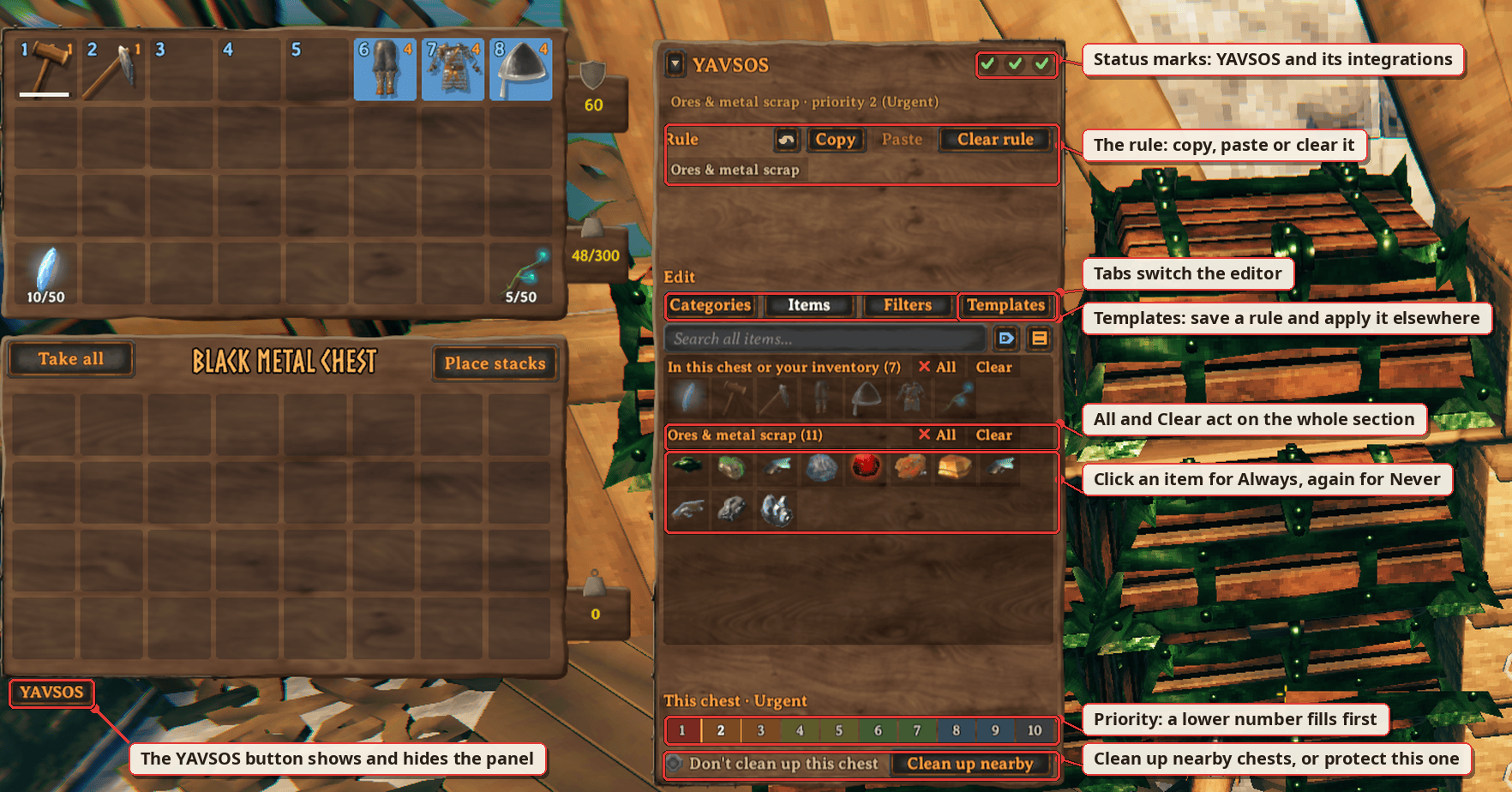
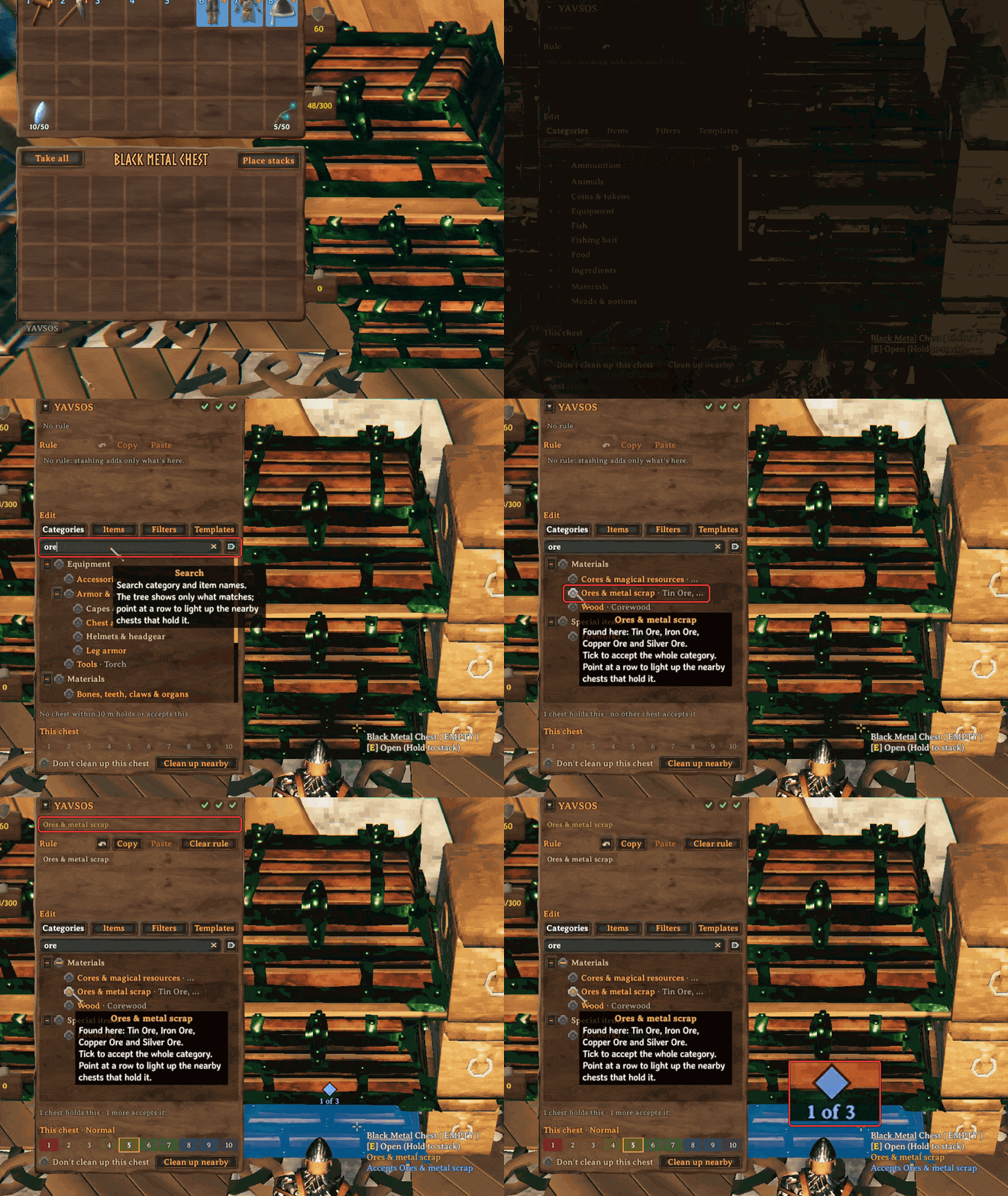
You can always clear a rule with a click of a button or Copy a rule from one chest and paste to another.
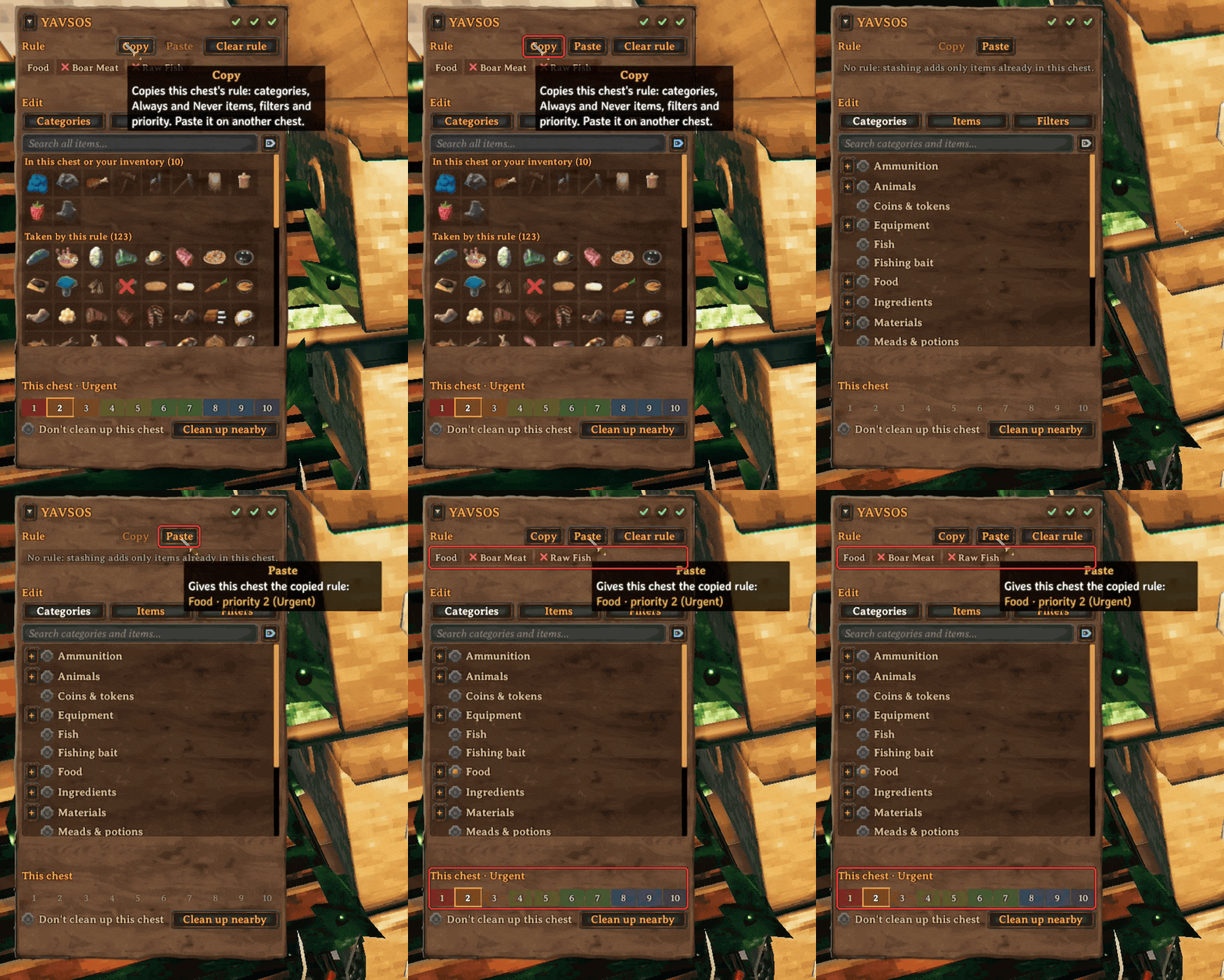
Rule management
You can use the ↶ (undo) button beside the Copy and Paste buttons, or press Ctrl + Z, which will undo your last change, which will include mistakenly pasting or clearing a rule. If you want to keep what was undone, you can always use the ↷ (redo) button which appears after undoing a change.
Rule editing respects the ward's permission settings when the chest is inside its area; a private chest can only be edited by the builder.
If you want more control:
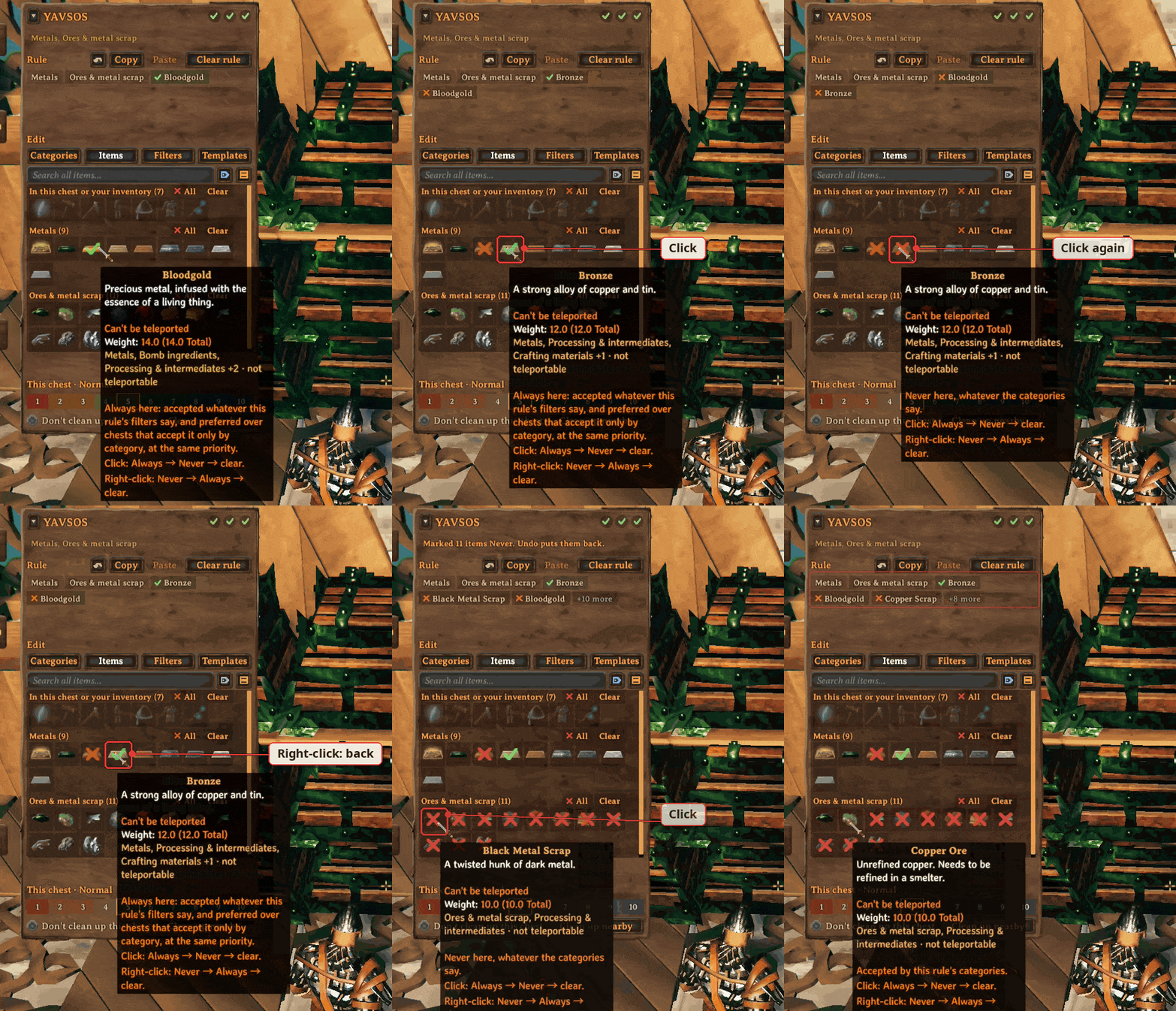
- Always or Never. Under the Items tab, you can click an item's icon to mark it Always, meaning it will always be accepted there (even if it's not in the category), click again for Never, meaning it won't be stashed there (even if it is in the category). Click again to clear it, meaning it will follow the category and filters. This is so you can have fine-grained control over what goes into a chest or not. You can also use right-click to cycle through Always/Never in the other direction. Selected categories will separate the items in the list by the category. You can use the bulk ✕ All buttons to exclude an entire category with one click, making it easy to allow only specific ones you want.
- Filters. Narrow things down, for example only upgraded gear, items crafted by you, an EpicLoot rarity, or food that's mostly health. The panel only offers filters that make sense for the items you picked.
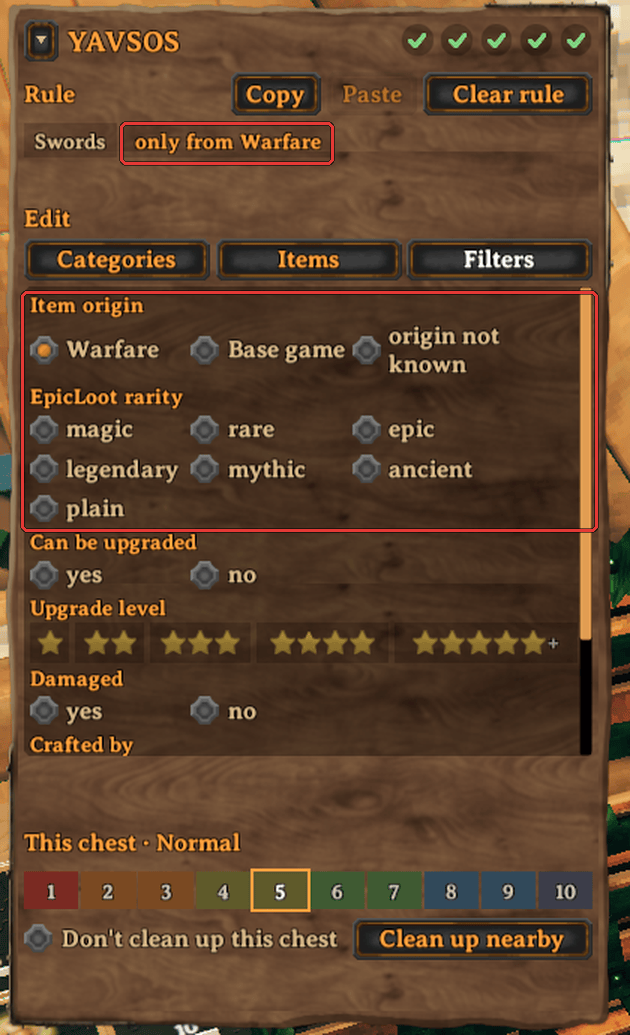
Additional mods shown: Warfare, EpicLoot, ZenUI, BetterUI.
- Priority. When two chests are set to accept an item, you can set a priority rank on chests you want to accept the item first, then use others as a backup. Priority 1 (Critical) vs Priority 10 (Fuhgeddaboudit), with Priority 5 being normal.
Rule suggestions
YAVSOS suggests rules based on what is in the chest already when a chest doesn't have a rule. Click the ✦ Set rule: Metals suggestion to set the rule. YAVSOS also suggests "always rules" when the chest holds items its rule doesn't accept; simply click the ✓ Always: these items suggestion to mark them as Always. Check the tooltip to see what items would be affected. You can dismiss the suggestion by clicking the ✕.
Rule templates
Templates offer a simple "click once to set up" way to use a pre-defined chest rule that is also shareable (admins only for now) with others on your server. You can save your own or copy the server's templates for use on any world YAVSOS is installed on.
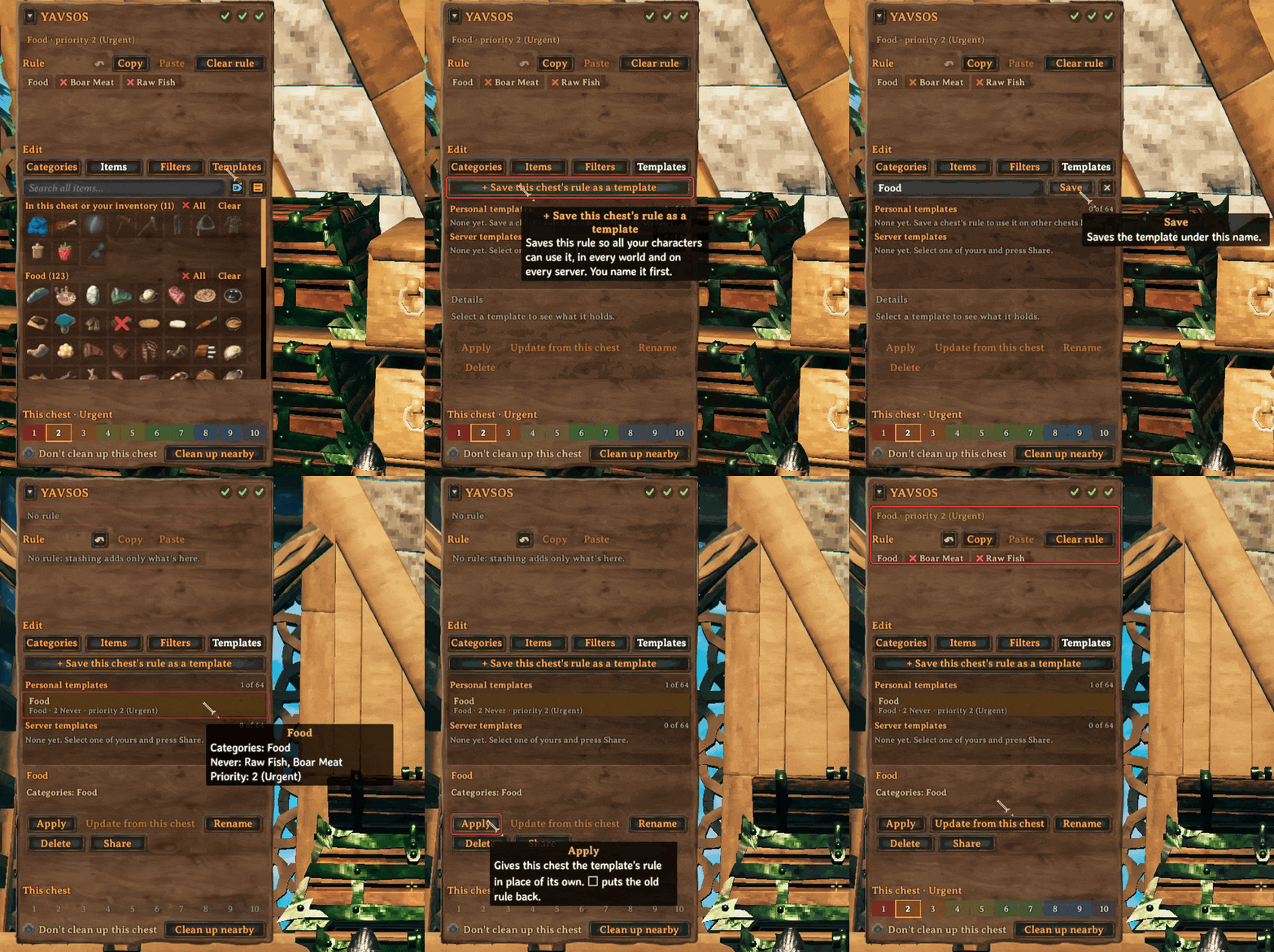
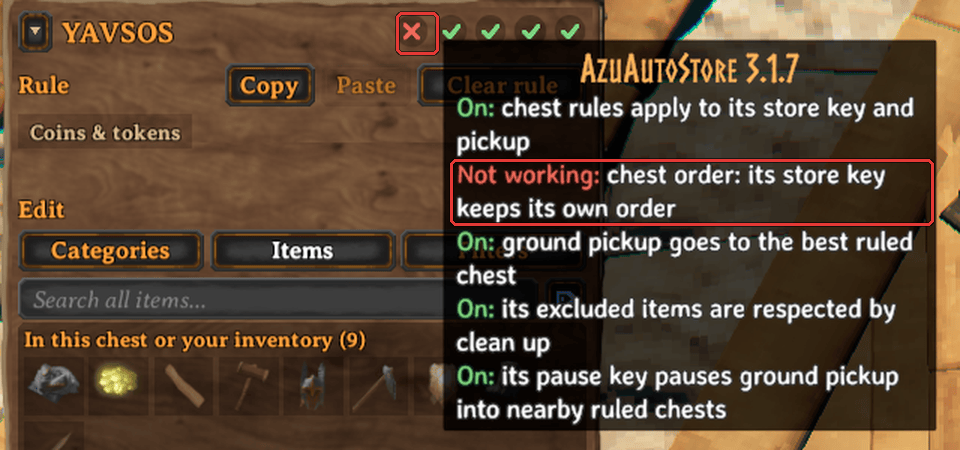
Status marks
On the top right of the YAVSOS panel, you can find the status of YAVSOS and its integrations (if the companion mod is installed). Point at each status mark in game to see explanations of exactly what's going on. Below is a general overview:
- Green
 means everything is active.
- Amber/yellow
 means a partial failure or there is something you might need to look at, such as AAS exclusions for a chest or categories for a mod not working.
- Red
 means a mod integration was disabled due to an automatic incompatibility check or functionality of YAVSOS is considered not working.
- Gray
 means a setting has been disabled.
Stashing
Stashing takes items from your inventory and automatically puts them into nearby chests for you. YAVSOS directs where these items end up by using the rules you set up on each chest.
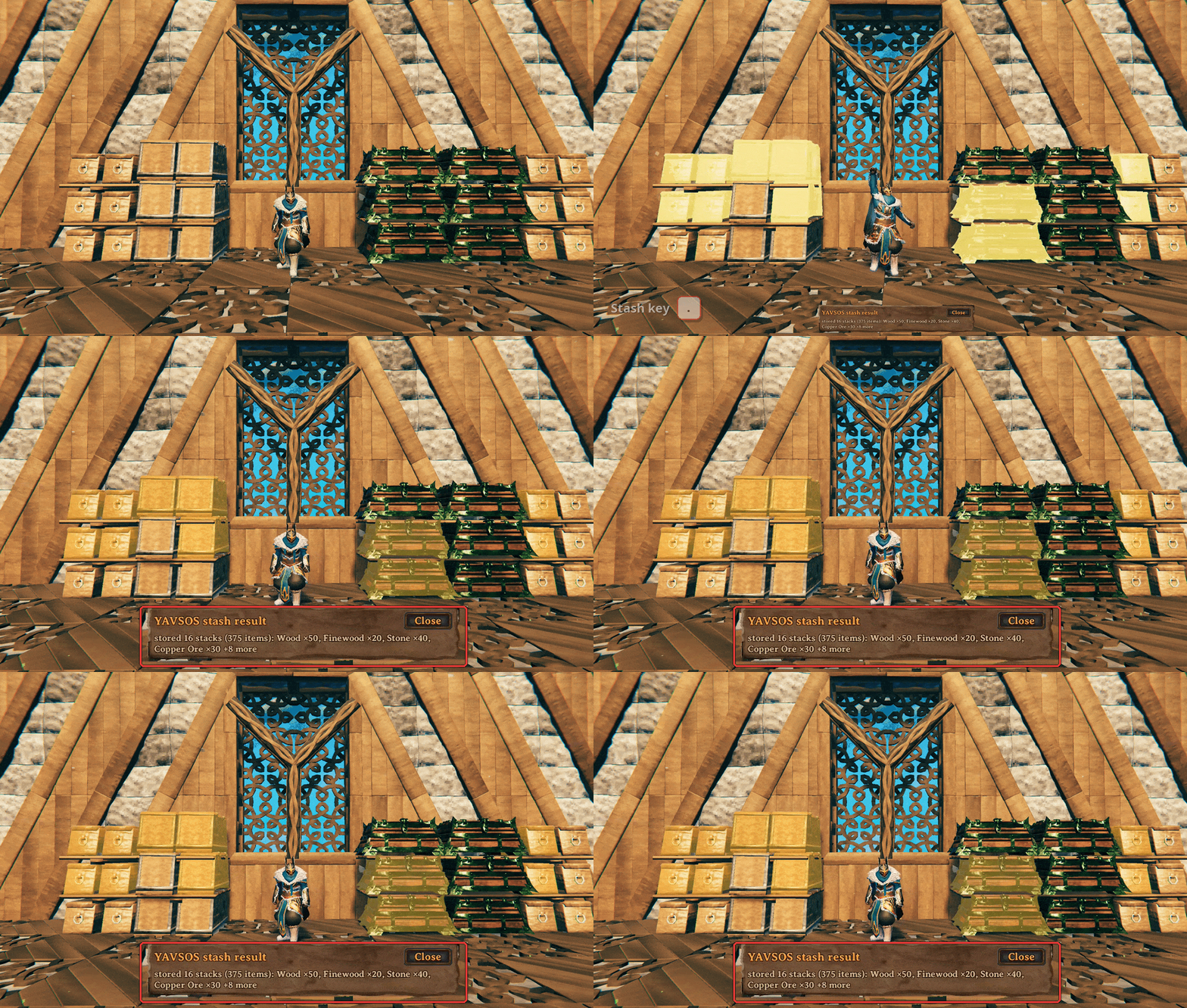
Press . (period) to stash everything in your inventory or Shift + middle-click a single stack/item in your inventory to stash just that one. With YAVSOS only installed, you will see chests light up and a little "puff" animation on the chests stacked. YAVSOS also will show a result panel in the bottom center of your screen. With AzuAutoStore (AAS) installed, YAVSOS defers to AAS for its stashing and you would use the AAS stash key as usual and see AAS's stashing animation instead.
The results panel
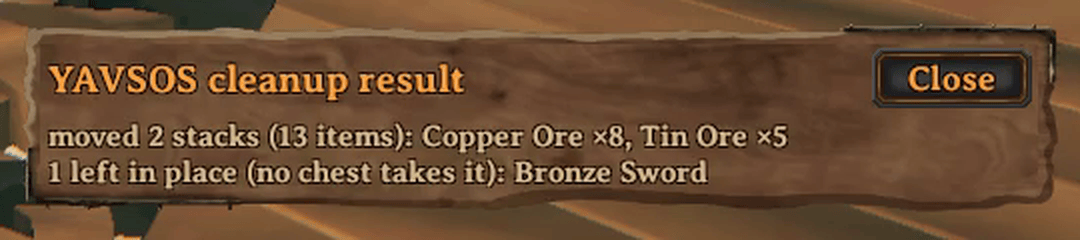
The result panel will show a summary of where items ended up. If they can't all be moved, the results panel will mention what items weren't moved, similar to how the cleanup's result panel works.
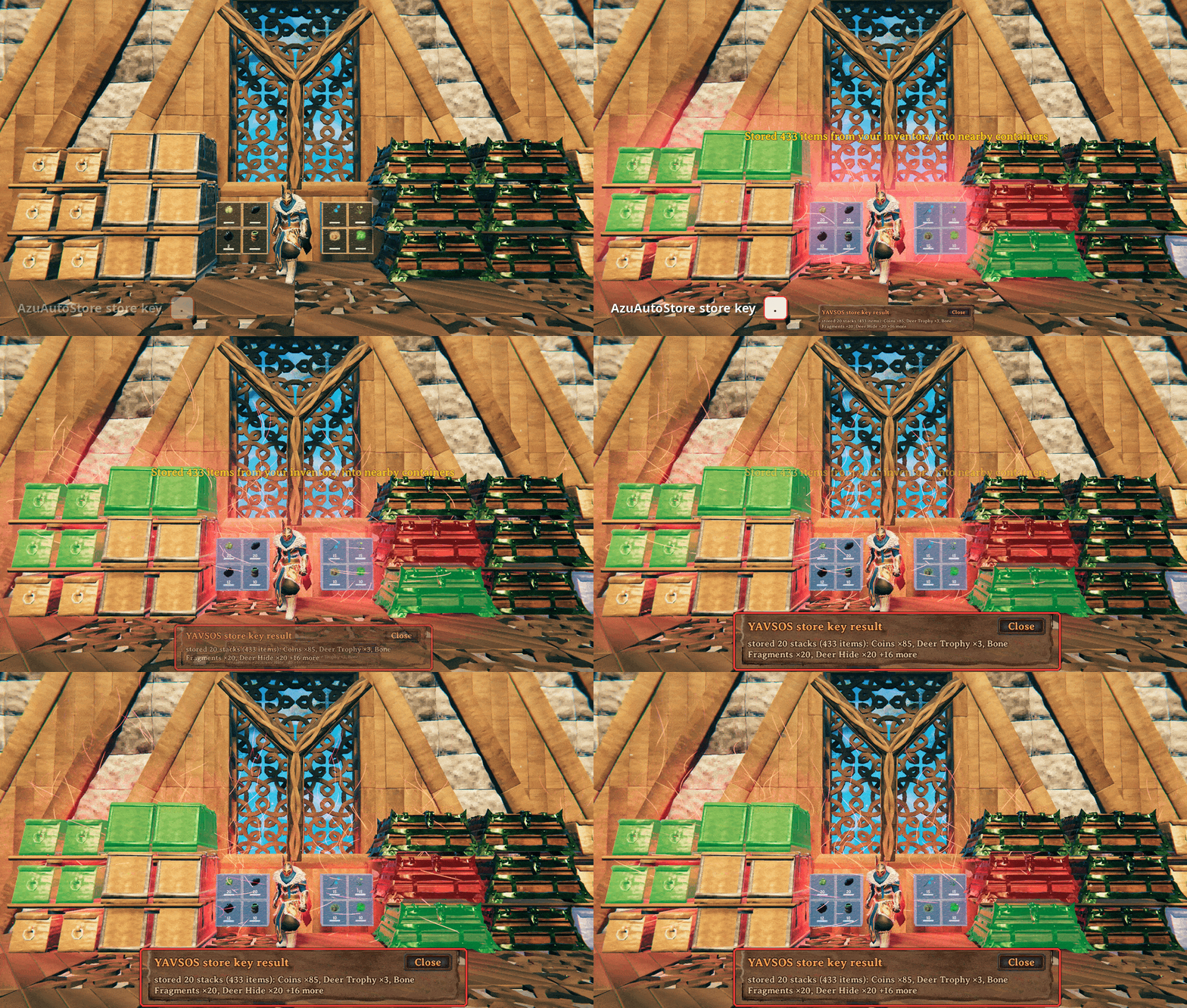
- For chests with a rule: Your items end up in the chests according to the rules that were set up, regardless of whether the item is already in the chest or not.
- For chests without a rule: The chest will accept items where existing items already match. (Just like AAS's default behavior.)
Equipped or favorited items (from supported mods) are never stashed. Items in your hotbar or AzuExtendedPlayerInventory (AzuEPI) quick slots are by default not stashed. These are configured through AAS when installed, or YAVSOS when standalone.
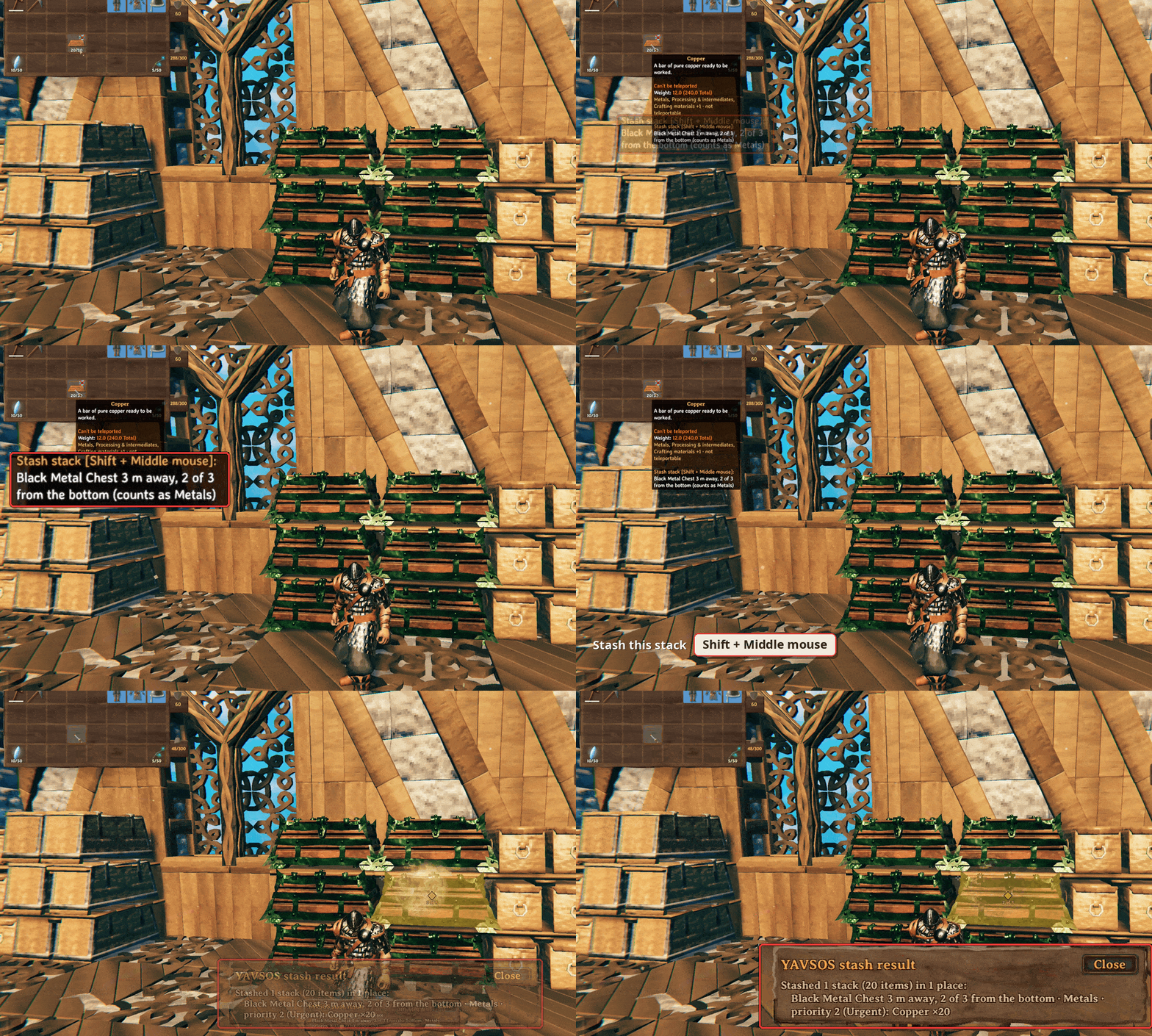
Cleaning up
Sometimes people don't always stash things in the right place, or maybe you want to change the rules or priority on existing chests, or your critical supply chest has run out of items also stored in a lower-priority chest somewhere nearby. The cleanup function can help here!
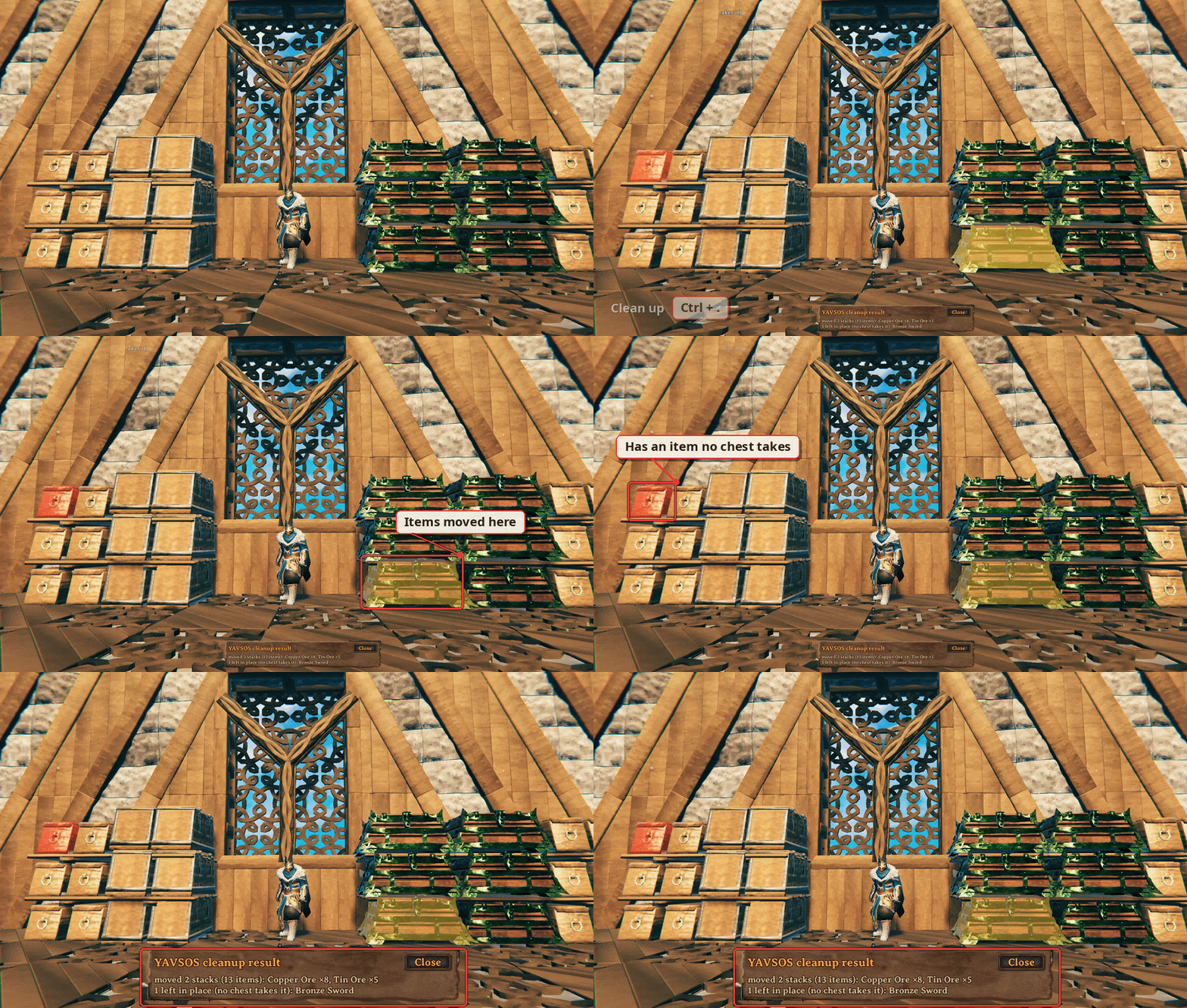
It finds items that are better placed in other chests (rule mismatch, higher priority, etc.) and moves them to the place within the configured range. This also will move items from unruled chests into ruled ones. You can do this from the YAVSOS panel by clicking on Clean up nearby or by pressing Ctrl + stash key (default ., period). Afterwards, you will see a panel display informing you of what moved or stayed. Additionally, you will see chests light up red if something couldn't be moved (because it was full or no existing rule takes the item). You can also disallow cleaning a chest with a click of the Don't clean up this chest tick box.
Finding things
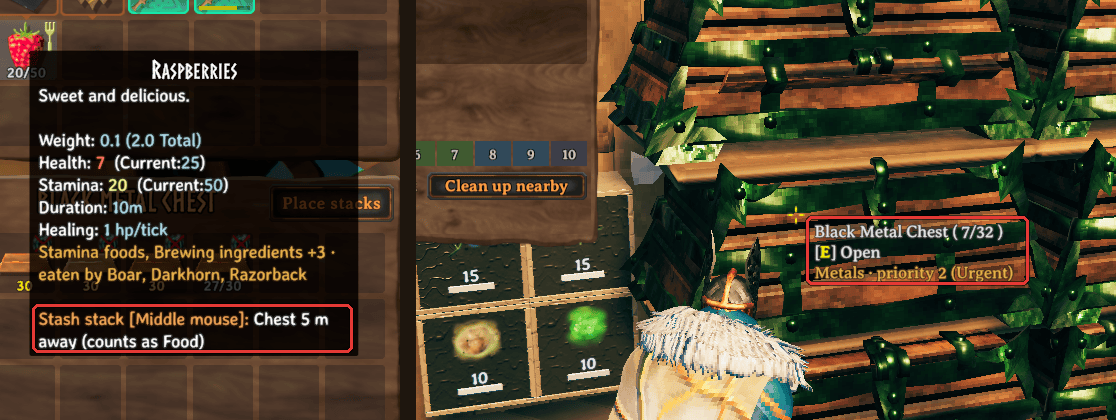
- Point at a chest to see its rule, like "Food › eaten by Boar · priority 2 (Urgent)".
- Point at an item in your inventory to see its categories and where stashing would send it.
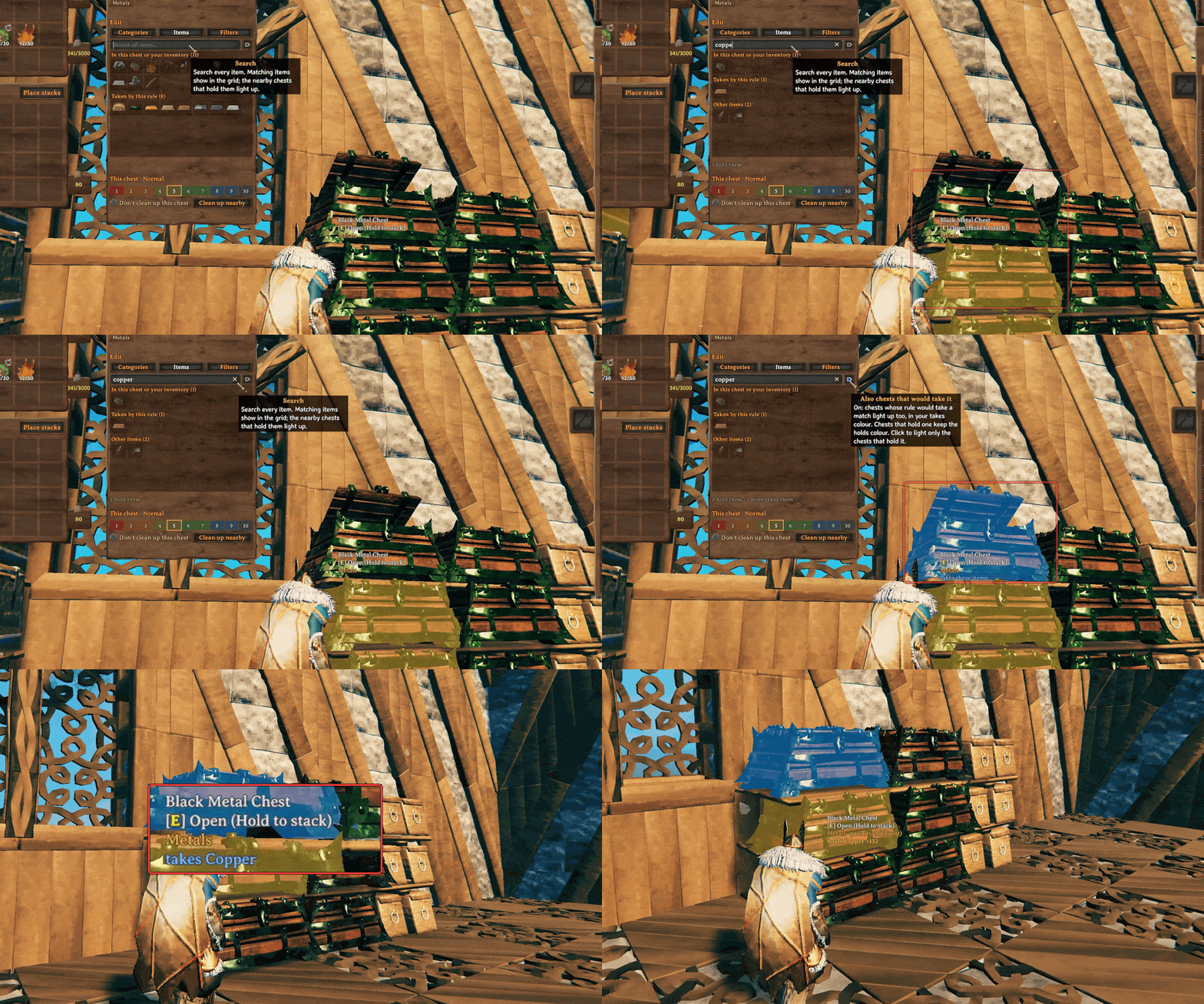
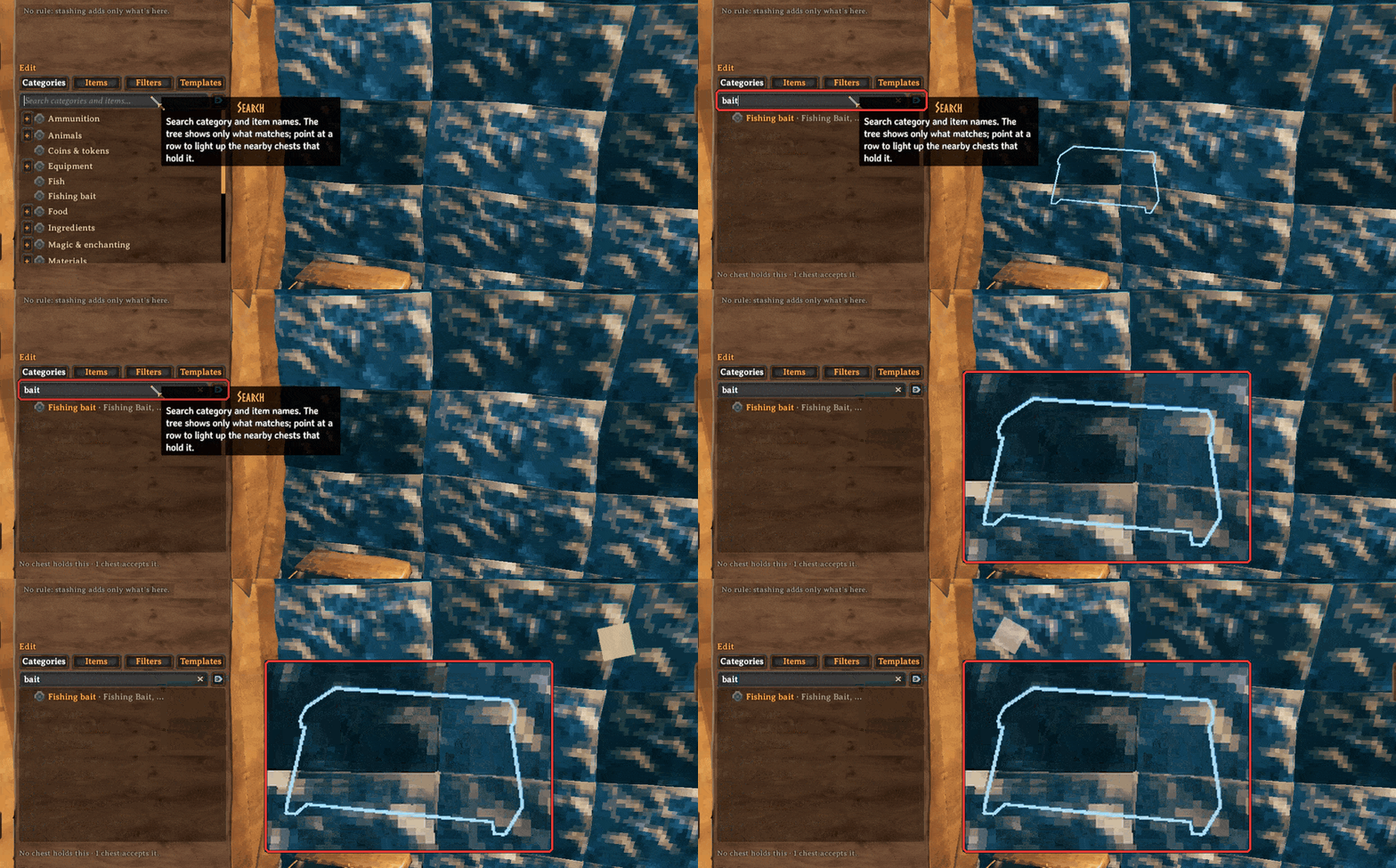
- Search in the panel, and the nearby chests that would take that item light up in blue (if the Also show chests that accept it toggle at the end of the search bar is on), while chests that have the item light up gold.
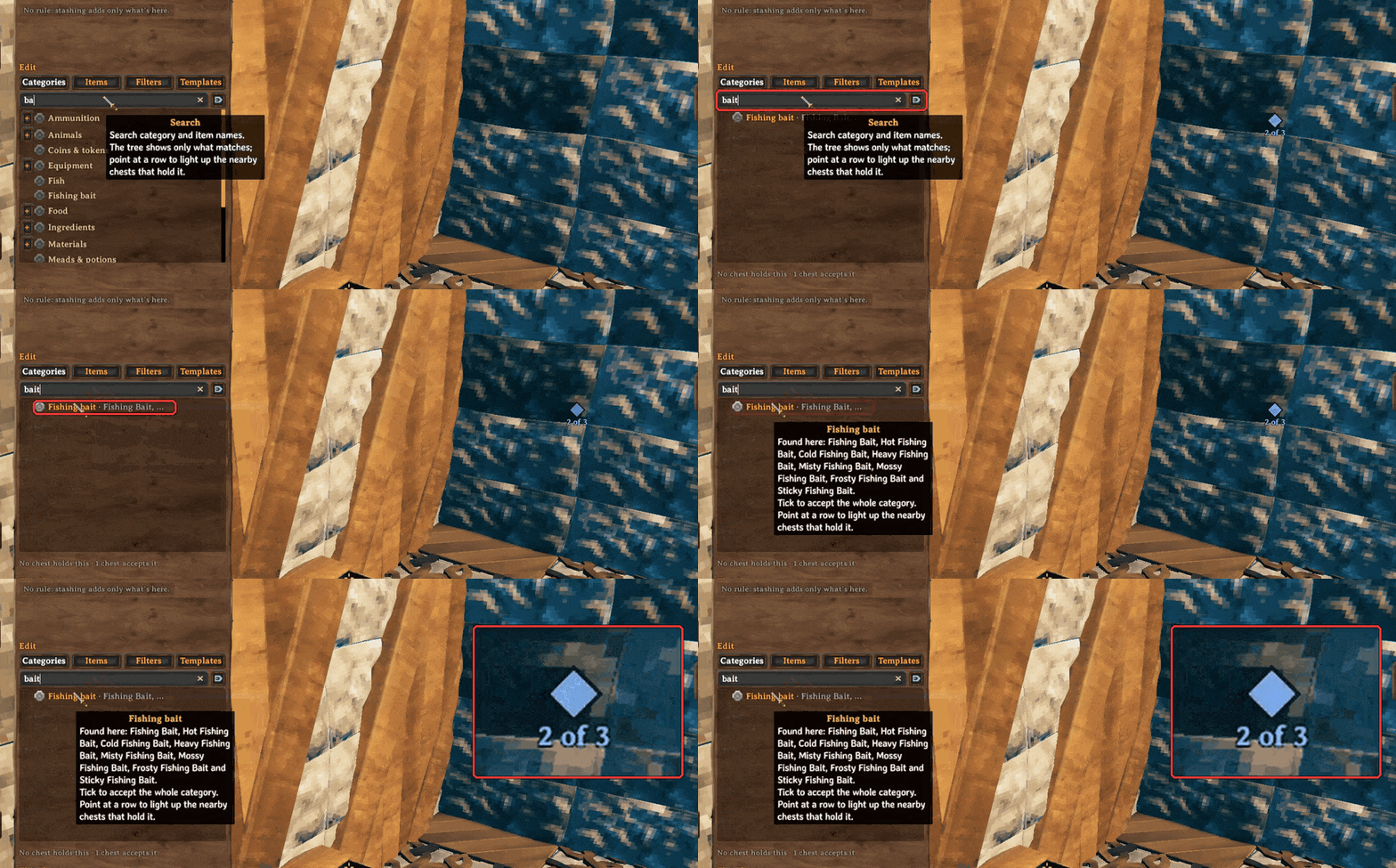
- Chests lit up will now show a small marker on the chest, even through walls. If Zen.ModLib is installed, an outline of the chest will display, even through walls, instead of the marker.
- The tooltip will also show a distinction on stacked chests, denoting where in the stack the chest sits. (Example: "Reinforced Chest 6 m away, 2 of 3 from the bottom").
Help and feedback
Everything goes through GitHub issues: bugs, questions, ideas and requests.
Open an issue on GitHub › · See existing issues
Reference
For server admins and modders
- Settings: for a list of all settings and their defaults and much more.
- Categories file: Want to add your own categories? Find out how here!
For developers
- Building from source
- Contributing
- Design: how YAVSOS works and why.
- Changelog
Other mods in detail
- AzuAutoStore: every item still goes in through AzuAutoStore's own store call, so its messages, skip lists and multiplayer handling are unchanged. It matches stacks by name and quality, keeps your equipped items, hotbar, quick slots and favorites, and anything no rule asks for follows its own settings.
- MultiUserChest: moves into another player's chest follow MultiUserChest's own rules, including what happens if that player lags or leaves while a move is waiting. YAVSOS's copy refuses a move when it can't be sure the other player will read the item correctly.
- EpicLoot: YAVSOS reads its item definitions to filter by rarity.
- RossItemDrawers: drawers don't take YAVSOS rules, because the drawer's own item assignment already does that job. An empty drawer assigned to an item gets that item through AzuAutoStore.
- InfinityHammer: Copying a chest with InfinityHammer copies the rules along with it.
- The game's "Place stacks" button works as it always has and doesn't follow rules.
- Item origin: the "item origin" filter knows items registered through Jotunn or ItemManager. Items a mod adds some other way show their origin as "origin not known", and base game items show as "Base game".
- Favorites: YAVSOS tries to respect favorites from other mods such as AzuAutoStore, Quick Stack Store, or ItemFavoriteFramework meaning favorited items won't be stashed. Unfavorite them to allow stashing.
- ZenSign: When ZenSign is installed with YAVSOS, the Shift + middle-click won't trigger an item search.
- Zen.ModLib: When Zen.ModLib is installed with YAVSOS, the item search marker changes to the outline from this mod instead.
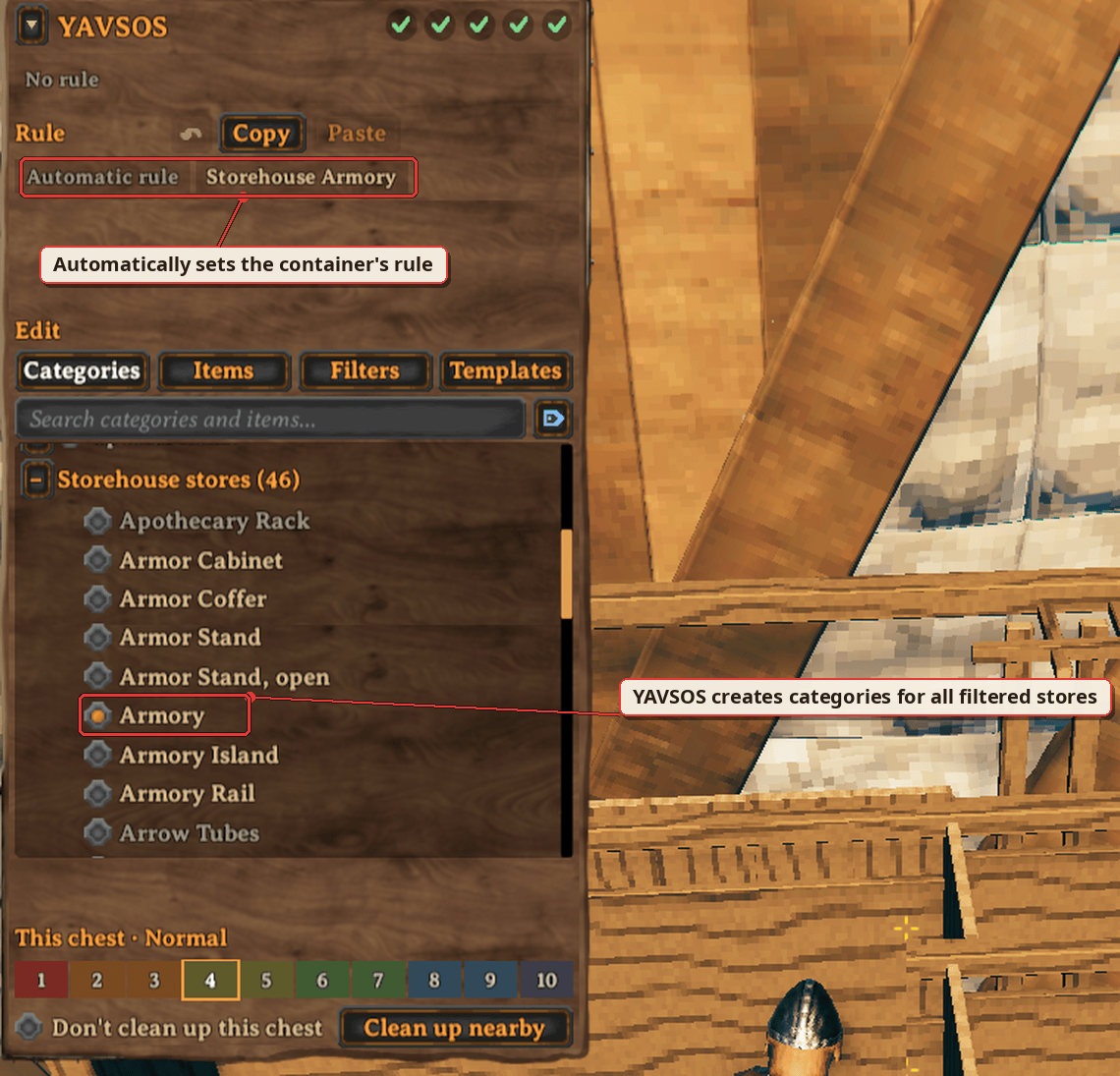
- Storehouse and other "filter container" mods: For mods with filter containers (like with the Storehouse mod), their containers are given an Automatic rule which will automatically accept the items they want without needing to assign a category to them. You can narrow down the rule in the rule editor to make the rule more exclusive.
Tested with AzuAutoStore 3.1.7, Jotunn 2.30.2, EpicLoot 0.15.6, RossItemDrawers 1.3.0, Quick Stack Store 1.4.16, ItemFavoriteFramework 1.0.0, and AzuExtendedPlayerInventory 2.6.6. During the testing, other mods were tested as well, but they won't be listed here; the mod is designed to generally be compatible by default. If specific compatibilities need to be expanded or made, create an issue on the GitHub for it!
License and credits
YAVSOS is GPL-3.0-or-later (LICENSE). YAVSOS wouldn't work without the hard work of these modders and their mods: ServerSync by blaxxun and MultiUserChest by MSchmoecker, both MIT (notices). Built on Jotunn and BepInEx.