
 Install with Gale
ZenLogin
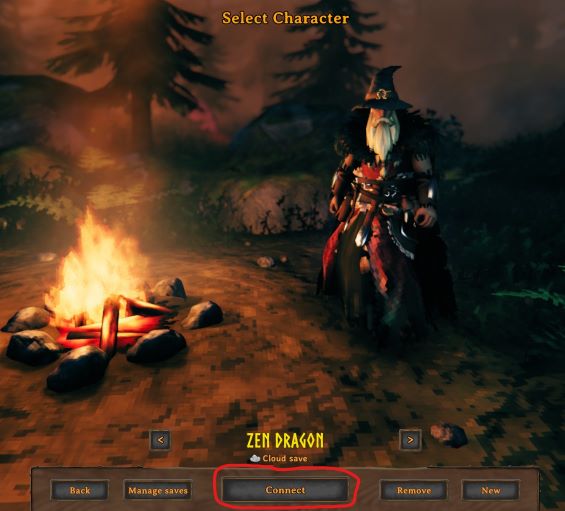
- Automatic login to your dedicated server after character selection.
- Change the title screen logo.
- Show/Hide the changelog on the title screen.
- Show/Hide the modded text on the title screen.
- Show/Hide the logout menu.
- Show/Hide the startup logos.
- Show/Hide the merch store link.
Full Gamepad Support.
Client Only
This mod operates entirely client side. That means you can connect to any vanilla server with this mod installed. Other players do not need to have the mod installed.
NOTE: If you host a game session with this mod installed then it will be considered to be installed on the server since your session is the server. Therefor, all clients will be required to have it. If you don't want to require all players to have this mod then you will need to host your game in a dedicated server. You can easily download and run the Valheim Dedicated Server from Steam or host one in the cloud.
Improve Your Experience
CORE MODS
The full collection of all Zen MODS:
- Radically improved QoL
- Incredible performance
- Pre-configured
- 100% Gamepad support
- Spectacularly immersive
Enjoy!
Sample Config File
## Settings file was created by plugin ZenLogin v1.5.1
## Plugin GUID: ZenDragon.ZenLogin

[General]

## When enabled, automatically connect to the dedicated server after character selection.
## NOTE: You can temporarily disable this by holding the Alt key before clicking "Connect"
# Setting type: Boolean
# Default value: true
Enabled = true

## Host or IP address and port of the dedicated server.  (Example: 127.0.0.1:2457)
# Setting type: String
# Default value:
Server Address =

## If left blank and the server requires a password it will prompt the user for the password.
# Setting type: String
# Default value:
Server Password =

## [Admin] Show the menu option "Logout" on the pause menu. (Vanilla: true)
## If disabled it will force players to quit the game instead of logout.
## This can be helpful when server admins need to force players to reboot the client.
# Setting type: Boolean
# Default value: true
Show Logout Menu = true

## Show the startup logo branding. Turn this off to load the game faster.
## Also, they are now always skippable via click or button press regardless of this configs's value.
# Setting type: Boolean
# Default value: true
Show Startup Logos = true

[Title Screen]

## Set the path to a custom main menu title screen logo.
## It can be a URL or a file path.
## If it is a file path, it must be relative to: BepInEx/config/
## You can create a subfolder if you wish.
## Must be a .png file.  Default dimensions: 1000x384
## Example:
## - YourLogo.png
## - your_folder/YourLogo.png
## - https://example.com/your_logo.png
# Setting type: String
# Default value:
Logo Url =

## Show the Changelog Patch Notes on the title screen. (Vanilla: true)
# Setting type: Boolean
# Default value: true
Show Changelog = true

## Show the Modded Text Info on the title screen. (Vanilla: true)
# Setting type: Boolean
# Default value: true
Show Modded Text = true

## Show the link to the merch store. (Vanilla: true)
# Setting type: Boolean
# Default value: true
Show MerchStore = true
Like My Mods? Donations Welcome
Bitcoin
