 Install with Gale
HUD Compass
Heads-Up Compass with Dynamic Map Markers for Ships, Carts & Portals
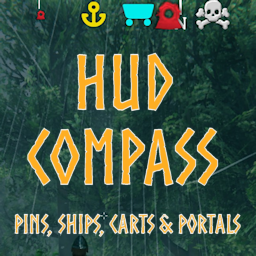
Dude, where's my boat? Never lose track of your boats, carts or portals again. A heads-up compass that includes standard pins and dynamic map markers for ships, carts, active and inactive portals on the compass and the map.
HUD Compass brings a complete experience to location aids. (see credits below)
- The scalable compass appears across the top of your screen.
- Toggle the compass on and off in-game.
- Dynamic pins (ships, carts, portals) are shown on the compass and the map, with or without labels.
- Portal pins display the name you give them.
- Ship labels can specify the type of ship (Karve, Longship, Raft), as well as custom ships.
- Don't want generic names? Add custom names to your Carts and Ships.
- Supports custom ships and carts.
- Active and inactive portals can have different colors.
- Configurations for fog, mist, in combat and while running for better immersion.
- Pin types to include/exclude are configurable.
- Pin size is relative to marker distance, with configurable limits.
- Configuration to use external images for custom compass and dynamic icon appearance. See Notes
New
- Fixed "disconnect" between show/hide types and show/hide map/compass config settings
- Added feature to name Carts and Ships for display on map
- Removed server authoritative hook for Ignored Pin Names and Types, and Show Carts, Ships and Portals
Configuration
A - HUD Compass
- Enable Compass: Enable or Disable the Compass HUD.@
- Show Compass: Show or Hide the HUD compass. Use the Toggle Compass key to change in-game.
- Toggle Compass Key: Key used in-game to toggle the compass visibility.
B - Compass Display
- Use Player Direction: Orient the compass based on the direction the player is facing, rather than the middle of the screen.
- Compass Scale: Sets the overall scale of the compass on the screen
- Offset (Y): Offset from the top of the screen in pixels.
- Distance (Minimum): Minimum distance from pin to show on compass.@
- Distance (Maximum): Maximum distance from pin to show on compass.@
- Player Pin Visibility: Force player pins (multiplayer) to appear or not appear on the compass and map, or let the player decide. Overrides Show My Player Pin if not set to PlayerChoice.@
- Show My Player Pin: Shows or hides your player pin (multiplayer) on the compass if playing no-map where visibility setting is not available. Overridden by server if Player Pin Behavior is not set to PlayerChoice.
- Pins Scale: Sets the overall scale of the pins on the on the screen
- Minimum Pin Size: Enlarge or shrink the scale of the pins at their furthest visible distance.
- Show Center Mark: (Optional) Show center mark graphic.
- Hide HUD While Map Open: Hide the HUD display while the large map is open.
C - Ignore
- Pin Names: Ignore location pins with these names (comma separated, no spaces). End a string with asterisk (*) to denote a prefix.
- Pin Types: Ignore location pins of these types (comma separated, no spaces). Types include: Fire,House,Pin,Portal,Start,Haldir,Hildir,BogWitch,Death,Bed,Shout,Boss,Player,RandomEvent,Ping,EventArea.
E - Compass Colors
- Compass Color: (Optional) Adjust the main color of the compass.
- Pin Color: (Optional) Adjust the color of the location pins on the compass.
- Center Mark Color: (Optional) Adjust the color of the center mark graphic.
F - Dynamic Pins
- Show dynamic pins on map: Display pins for ships, carts and portals on the main and minimap. Controlled individually below.@
- Show dynamic pins on compass: Display pins for ships, carts and portals on the compass. Controlled individually below.@
- Player pin refresh pin interval: Interval in seconds between refresh of player pins on map and compass. Decrease for 'smoother' updates of player pins. Zero refreshes every frame. NOTE: Valheim default for Player pin refresh is 2 seconds. Decreasing can reduce multiplayer performance.@
G - Dynamic Types
- Show Ships: Show ships on the map and compass.@
- Show Carts: Show carts on the map and compass.@
- Show Portals: Show portals on the map and compass.@
H - Dynamic Names
- Show dynamic names on map: Display boat and cart types (i.e., Raft, Karve, Longship) and Portal names on the large map.
I - Dynamic Map Colors
- Active portal color on map: Color of portal icons with active connections.
- Portal color: Color of portal icons on map.
- Ship color: Color of ship icons on map.
- Cart color: Color of cart icons on map.
- Use colors on compass: Use colors for dynamic pins on the compass
J - Visibility
- Always Visible: Always display pins of these types or names (comma separated, no spaces) at full size regardless of distance, except if icon is hidden on map.@
K - Immersion
- Hide Compass in Mist: Turn off the compass in mist.@
- Hide Compass in Combat: Turn off the compass while in combat.@
- Hide Compass in Combat delay: The amount of time after combat actions before the compass is re-displayed.@
- Hide Compass in Fog: Turn off the compass in dense fog.@;
- Hide Compass Indoors: Turn off the compass when you're in dungeons or sheltered.@
- Hide Compass While Running: Turn off the compass while running. Stop or walk to get your bearings.@
L - Death Pin Management
-- Auto Remove Death Pin: Automatically remove death pin when Tombstone is emptied, or if no Tombstone is created.
M - Naming
- Allow Naming: Allow naming ships and carts to display on the map.@
- Max Name Length: Maximum length of the Ship or Cart name.@
- Use Key Modifier: Key when pressed along with your 'Use' key will open the Ship or Cart Naming dialog.
Z - Utility
- LogLevel: Controls the level of information contained in the log
- Use External Images: Deprecated
Configuration items with descriptions ending with "@" are server authoritative.
In-game reconfiguration
You can use Configuration Manager (or similar) mod to change the configuration without exiting the game. The configuration will reload if you make changes to the config file.
Credits
First and foremost, credit goes to gdragon for convincing me to pick up development of Immersive Compass, and for extensive suggestions, testing and feedback. Without this help I would have only had half the functionality.
HUD Compass incorporates functionality of Immersive Compass by GuyDeYoYo (aka Fragnarok, with permission), which credits the original code to Aedenthorn.
The dynamic markers uses code from Automatic Map Markers - Ship & Cart from Schlangguru, who I made several attempts to contact for explicit permissions but the mod is not maintained.
Use of the code is within the license requirements of the above mods and is included in the distribution.
Notes
- Ignored pins, and Show settings for Carts, Ships and Portals are no longer server authoritative - they are client settings only. While the server still controls whether dynamic pins are allowed on the map and compass, the allowed types that are displayed is a client setting.
- You may name your Carts and Ships and the name will display on the map.
- For Carts, hover over the cart and press your normal "Use" key along with the Use Key Modifier
- For Ships, hover over the ship rudder and press your normal "Use" key along with the Use Key Modifier
- If you use Bumper Stickers on Crafty Carts, the sticker text will be updated. If you change the Bumper Sticker, the map will be updated once you attach the Cart or trigger an event that updates the pin.
- If you use another mod that names Carts or Ships and uses the out-of-the-box text (ZDOVars.s_text) to persist names, that will also work.
- Image resources are located in BepInEx/config/Neobotics/HUDCompass. This ensures that if you have custom images, they will not get overwritten on updates. The configuration UseExternalImages is now deprecated.
- Death pin management:
- This is being added after several of the mods already removing death pins were deprecated. When automatic removal is enabled, emptying the tombstone will remove the death pin. If there's nothing in your inventory and no Tombstone created, no pin will be created.
- Removing a local death pin marker will not remove that marker from the Cartography table. If you 'record your discoveries' with an 'active' death pin, it will remain stuck on the Cartography table as a 'ghost'.
- The option to turn off the compass in dense fog or mist only applies if you are actually in the fog or mist. It does not turn off if the fog just obscures other things in your field of vision.
- Player Pin Visibility (server controlled setting) affects player pin display on both the compass and the map.
- Show My Player Pin is synced with Visible to Other Players toggle on the map. They are the same.
- A C. Ignore / Pin Names entry can include leading and trailing asterisks (*)
- Examples:
- "Raspberry*" will match "Raspberry" and "Raspberry xyz"
- "*Raspberry" will match "Raspberry and "abc Raspberry"
- "*Raspberry*" will match "Raspberry", "Raspberry xyz" and "abc Raspberry", but only if the start or end match the entire string
- "*berry" will match "Raspberry", "Blueberry" and "Cloudberry" and anything else ending in "berry" including all berries prefixed with a count (e.g. "3 Raspberry")
Note: Wildcard matches can be FPS 'expensive'. Whenever possible, try to create one that includes multiple pins (i.e. the '*berry' example above)
Compatibility issues & defects
-
HUD Compass has been tested with OdinsShipsPlus, ValheimRAFT, CustomShips, and CraftyCarts.
-
It should work with any mod that adds ship or carts using the standard Ship or Vagon components.
-
'Buildable' ships and carts will show the name of their base unit, e.g. Custom Ship, Raft Base.
-
If you find a compatibility issue please post it on mod-help on Discord. Be sure to include the mod name and version you think may be incompatible.
-
If you have a bug please report it in mod-help on Discord. If you do post a bug report, please make sure to include the following:
- Your version of this mod
- What you were doing, or attempting to do when it happened
- If it's repeatable - i.e., can you duplicate it?
- The exact behavior you observed (or didn't observe)
- If possible, post a capture of the log file with errors (errors always begin with this mod's name) on Discord
You can find all Neobotics released mods on:
- Thunderstore: NeoboticsOnThunderstore
- Nexus Mods: NeoboticsOnNexus
- Hexium: NeoboticsOnHexium
Your comments and feedback are always welcome. Post on NexusMods or Discord: NeoboticsOnDiscord