 Install with Gale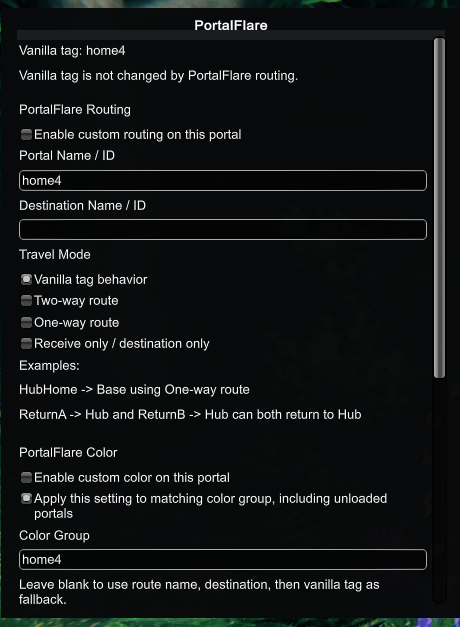
PortalFlare
PortalFlare expands Valheim portals while keeping unconfigured portals compatible with the normal game rules.
A portal set to Vanilla is left alone. Valheim controls its routing, item restrictions, and activation visuals. A portal set to a PortalFlare routing mode uses PortalFlare routing, permissions, colors, and map marker support.
Core features
- Vanilla-safe mode for wood, stone, and supported modded portals.
- In-game portal editor opened with the configured hotkey, default B.
- Custom portal colors.
- Random portal colors.
- Color by tag/group.
- Shared colors for paired or grouped portals.
- Two-way PortalFlare routes.
- One-way routes.
- Receive-only destinations.
- Multiple source portals routing to the same destination.
- Routing support for loaded and unloaded portals.
- Custom portal prefab support through config.
- Public, private, and admin-only portal permissions.
- Optional PortalFlare map markers with custom embedded icons.
- ServerSync support for synchronized settings.
Opening the editor
Look at a supported portal and press B by default.
The hotkey can be changed in the config:
[2 - Portal Editor]
Open Editor Key = B
Use Unity KeyCode names such as B, G, F7, LeftAlt, or Keypad1.
Vanilla mode
Vanilla mode means PortalFlare does not take control of that portal.
Use this mode when you want the portal to behave exactly like the game or the portal prefab normally does.
Behavior:
- Valheim controls routing.
- Valheim controls whether the activation VFX appears.
- Valheim controls item blocking.
- Wood portals block restricted items such as metal.
- Stone portals can keep their own portal rules.
- PortalFlare does not force targets or custom travel.
Example:
Wood Portal A tag: home
Wood Portal B tag: home
Mode: Vanilla
Result: normal Valheim two-way portal pair
PortalFlare routing modes
PortalFlare routing is used only when a portal is configured as a PortalFlare route mode instead of Vanilla.
Two-Way
Two-Way is for a normal custom pair that should allow travel in both directions.
Example:
Portal A
Route Name: Mine
Destination: Base
Mode: Two-Way

Portal B
Route Name: Base
Destination: Mine
Mode: Two-Way
Result:
Mine ⇄ Base
One-Way
One-Way sends the player to a destination but does not allow return travel from the same portal unless that destination has its own outbound route.
Example:
Portal A
Route Name: DungeonExit
Destination: Village
Mode: One-Way

Portal B
Route Name: Village
Mode: Receive Only
Result:
DungeonExit → Village
Receive Only
Receive Only portals are arrival points. They do not allow outbound travel.
Example:
Portal A
Route Name: MineEntrance
Destination: MineExit
Mode: One-Way

Portal B
Route Name: MineExit
Mode: Receive Only
Result:
MineEntrance → MineExit
Trying to use the receive-only portal for outbound travel is blocked.
Multiple source portals to one destination
Several PortalFlare portals can route to the same destination.
Example:
Portal 1
Route Name: 1
Destination: HUB
Mode: One-Way

Portal 2
Route Name: 2
Destination: HUB
Mode: One-Way

Portal 3
Route Name: 3
Destination: HUB
Mode: One-Way

Hub Portal
Route Name: HUB
Mode: Receive Only
Result:
1 ─┐
2 ─┼──► HUB
3 ─┘
This does not require matching vanilla portal tags.
Hub with return routes
For a hub that receives from many places and also sends players back out, use separate outbound portals at the hub.
Example:
Remote Mine → HUB
Remote Swamp → HUB
Remote Plains → HUB

Hub Mine Portal → Mine
Hub Swamp Portal → Swamp
Hub Plains Portal → Plains
The receive portal brings players into the hub. The outbound hub portals send players back out.
Tag pair behavior
When a one-way portal targets another portal with the same route/tag group, PortalFlare can set the matching destination side to Receive Only.
Example:
Start Portal A
Route Name: Start
Destination: Start
Mode: One-Way

Start Portal B
Route Name: Start
Mode becomes Receive Only
Result:
Start A → Start B
The receive side should not allow travel back unless it is changed to a routing mode with an outbound destination.
Colors
PortalFlare color settings apply to PortalFlare-enhanced routes. Vanilla mode is left to Valheim.
Color modes:
- Game Default: keep the normal portal effect color.
- Custom Color: choose a specific hex color.
- Random Per Portal: generate a saved random color for that portal.
- Random By Tag/Group: portals in the same group use the same generated color.
Custom color example
Mode: One-Way
Color Mode: Custom Color
Custom Color: #FF00FF
The portal VFX uses magenta when the portal effect is active.
Random by group example
Portal A group: BlackForest
Portal B group: BlackForest
Color Mode: Random By Tag/Group
Pair Shares Color: enabled
Both portals receive the same generated color.
Shared pair colors
When Pair Shares Color is enabled, PortalFlare stores the color in the portal group data. Loaded portals update immediately, and unloaded portals receive the same color when their ZDO is scanned or loaded later.
Visual behavior
PortalFlare does not decide when portal activation VFX should appear. The game or the custom portal prefab controls activation.
PortalFlare only recolors the active portal VFX for enhanced routes. It does not color the portal body, stone frame, wood frame, or general portal mesh.
The current VFX coloring targets lights and particle systems only to avoid tinting the portal object material.
Permissions
Permissions apply only to PortalFlare-enhanced routes. Vanilla mode ignores PortalFlare permissions.
Permission modes:
- Public: any player can use the route.
- Private: only the claimed owner and admins can use the route.
- Admin Only: only admins can use the route.
The editor includes a Claim Owner button.
Single-player and listen-server host are treated as admin. Dedicated servers use the synchronized admin state.
Example private route:
Route Name: Vault
Destination: Home
Mode: Two-Way
Access: Private
Owner: Claimed by player
Only the owner or admin can use that route.
Map markers
The editor can add or remove a PortalFlare map marker at the portal position.
Use Choose Marker Icon before pressing Add / Update Map Marker.
Available marker icon choices:
- Auto / current portal mode
- Vanilla portal
- Two-way portal
- One-way portal
- Receive-only portal
- Multi-destination hub
Auto chooses the icon based on the current portal route mode. Manual choices let you mark a portal with any PortalFlare icon regardless of its route mode. PortalFlare saves the chosen icon in PortalFlare.MapMarkers.dat and reapplies it after restarting the game, because Valheim only saves normal pin data and otherwise reloads custom pins with default map icons.
The icon size is controlled by:
[4 - Portal Routing]
Map Marker Icon Scale = 2
A value of 2 makes the embedded icon display about twice as large.
Custom portal prefab support
PortalFlare can support modded portal prefabs when their names are added to config.
[1 - General]
Portal Prefab Name Prefixes = portal_wood,portal_stone

[4 - Portal Routing]
Linkable Portal Prefab Names = portal_wood,portal_stone
Add custom portal prefab names to Linkable Portal Prefab Names. Exact prefab names are used for routing.
Example:
Linkable Portal Prefab Names = portal_wood,portal_stone,my_custom_portal
Unloaded portal support
PortalFlare scans portal ZDOs so routes and color groups can work even when the destination portal is not currently loaded nearby.
This is important for:
- Far-away portal pairs.
- Hub networks.
- Shared colors between portals in different zones.
- One-way routes to distant receive-only portals.
Item restrictions
Vanilla mode uses vanilla item restriction behavior.
PortalFlare-enhanced routes use PortalFlare travel handling. This prevents vanilla wood-portal restrictions from incorrectly blocking custom stone or modded portal routes.
Important config options
[2 - Portal Editor]
Open Editor Key = B
Open Editor Distance = 5

[3 - Rendering]
Color Intensity = 1.25
Portal Refresh Interval Seconds = 2

[4 - Portal Routing]
Enable PortalFlare Routing = true
Enable Portal Permissions = true
Portal Route Refresh Seconds = 3
Portal Route Scan Budget = 500
Map Marker Icon Scale = 2
Debug logging
Debug options are available in the config. Keep these disabled during normal play because they can be spammy.
Useful options when testing:
Debug Editor Logging = true
Debug Color Logging = true
Debug Routing Logging = true
Debug ZDO Scan Logging = true
Debug Rendering Logging = true
Use debug logs to confirm:
- route name
- destination name
- route mode
- target ZDO
- color mode
- color group
- permission mode
- loaded and unloaded portal scans
Notes
- Vanilla mode means Valheim owns the portal.
- PortalFlare modes mean PortalFlare owns routing and permissions.
- Portal activation visuals remain owned by Valheim or the custom portal prefab.
- PortalFlare only recolors VFX for enhanced portals.
FYI
- HAVE NOT TESTED ON A SERVER but in theory it should work.
- Testers appreciated.