 Install with Gale
Proximity Voice Chat
Proximity voice chat for Valheim.
Players near you sound close, get quieter as they move away, and disappear completely once they're out of range.
No Mumble, TeamSpeak, or second program. Install it and talk.
Push-to-talk is B for nearby players and N for everyone on the server.
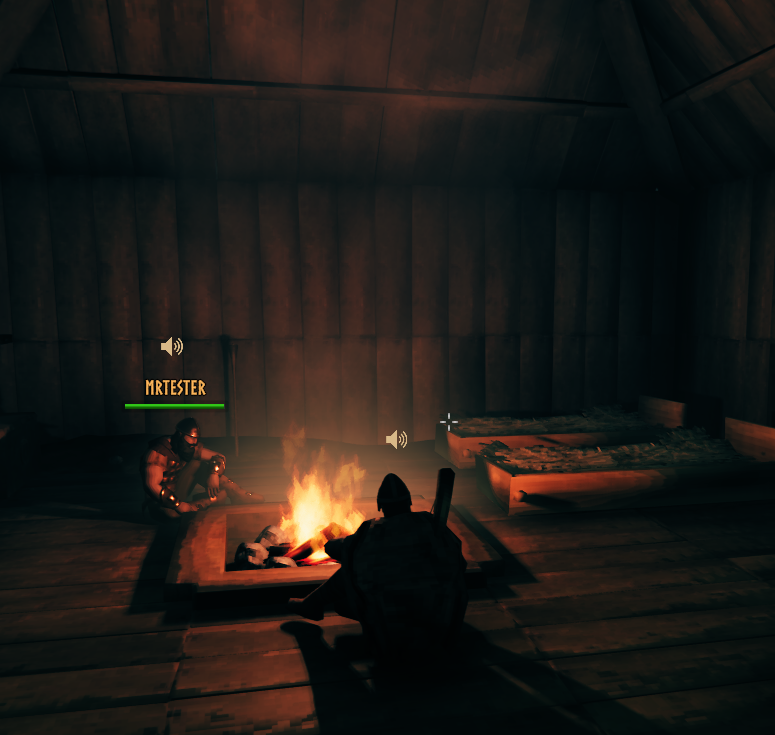
Characters move their jaws while speaking, and optional speaker icons make it easy to see who's talking, muted, or deafened.
Features
- Local voice: proximity chat with directional audio and distance-based volume
- Global voice: talk to everyone using the mod on your server, regardless of distance
- Separate push-to-talk keys, configurable under Settings > Voice
- Push-to-talk or voice activation
- Per-player volume and mute controls
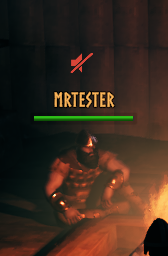
- Speaking, muted, and deafened indicators
- Character jaw movement while talking
- Walls and obstacles muffle voices
- Cave/reverb effects
- Underwater muffling
- Automatic microphone gain
- Adaptive jitter buffering and packet-loss handling
- Music lowers while nearby players are speaking
- Automatic recovery when microphones are unplugged/reconnected
- Noise Gate settings
- Live mic testing
- Fully configurable through Settings > Voice
Player controls
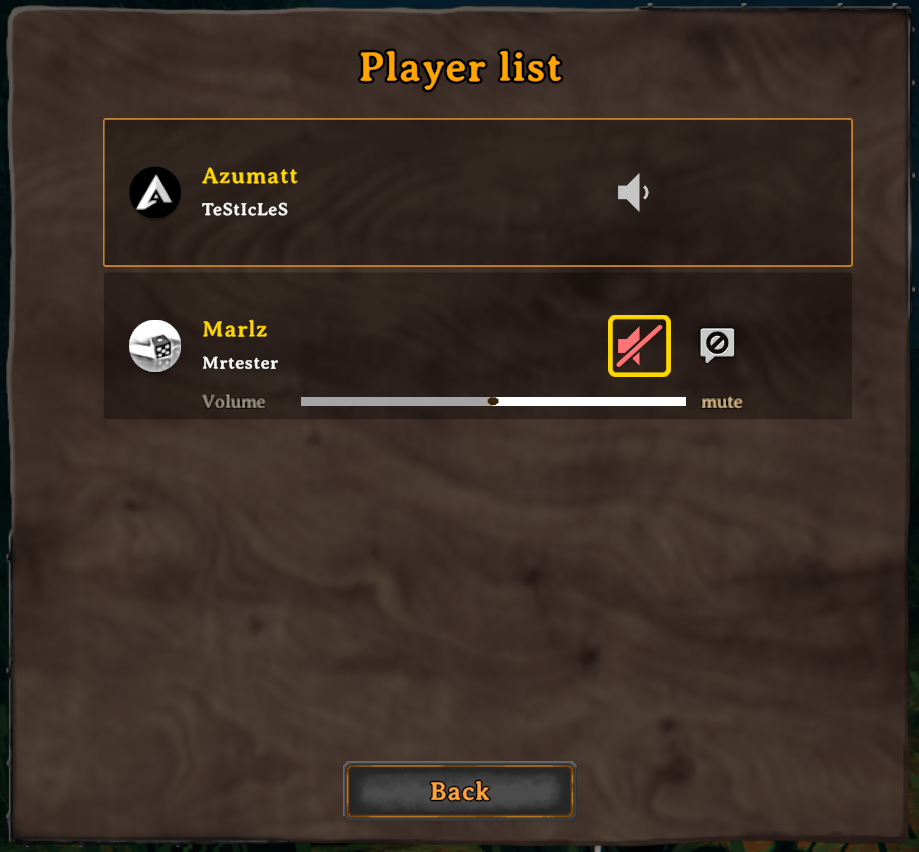
Open Menu > Player list to manage individual players on a server.
From there you can:
- Change their volume
- Mute/unmute them
- See when they're currently talking


Need to know
Every player who wants to talk or listen needs the mod.
The server does not need it.
Players without the mod can still join normally, they simply won't participate in voice chat.
Installing the mod on the server is optional and allows admins to sync things like voice range and codec settings using ServerSync.
Your microphone, volume, keybinds, mute settings, and other personal preferences are never server-controlled.
Recommended to use headphones or keep your speaker volume low.
There is currently no echo cancellation or noise suppression (other than the noise gate!), so speakers may cause other players to hear themselves through your microphone.
Privacy
Your voice is sent directly to nearby players through Steam's networking, or to everyone on the server while you hold the global key.
It does not pass through the Valheim server or through a server operated by me or your admin.
The mod does not:
- Record voice
- Save audio to disk
- Transcribe voice
- Log what you say
- Collect telemetry or analytics
- Read or log player IP addresses
With push-to-talk, audio is only sent while you're holding a key.
With voice activation, audio is sent whenever your microphone passes the configured activation threshold.
Players outside voice range don't receive your local voice at all.
How it works
Valheim already gives clients the Steam IDs of connected players.
Proximity Voice Chat uses those IDs to establish peer-to-peer connections through Steam and sends small 20 ms Opus audio frames directly between players.
Incoming voice is played from the speaker's character. Valheim handles positional audio and distance naturally.
Global voice skips all of that and plays flat, at full volume, from anywhere on the server.
Voice also reacts to the world:
- Walls muffle players behind them
- Caves and other reverb zones affect voices
- Underwater voices sound muffled
- Volume fades with distance
The mod uses roughly 24 kbit/s per connected player at the default bitrate.
Quick start
- Install the mod.
- Join a world with someone else who has it.
- Hold
Bto talk to players near you, orNto talk to everyone. - Talk.
Use:
Menu > Player list
for player volume and muting.
Use:
Settings > Voice
for microphone selection, gain, voice activation, keybinds, indicators, playback settings, and testing.
Having microphone problems?
Turn on Hear myself while I talk and check that the input meter moves.
You can also enable Test tone instead of my microphone to send a test tone through the full voice pipeline without using your microphone. Perfect for testing things that might require constant talking.
Configuration
Config file:
BepInEx/config/Azumatt.ProximityVoiceChat.cfg
Most settings are also available directly under Settings > Voice.
Server synced
If the server has the mod installed:
- Allow Global Voice
- Max Range
- Range Hysteresis
- Full Volume Range
- Bitrate
- Expected Packet Loss
- Use DTX
Always controlled by you
Things like:
- Microphone device
- Gain / auto gain
- Push-to-talk
- Voice activation
- Keybinds
- Mute / deafen
- Player volumes
- Music ducking
- Occlusion
- Reverb
- Underwater effects
- Speaking indicators
- Jaw movement
Mute and deafen are unbound by default so they don't conflict with other mods.
Known limitations
- No echo cancellation
- No noise suppression
- Mono voice at 48 kHz
- Steam only
Microphones using another sample rate are automatically resampled.
Translation
All user-facing text is stored in:
translations/English.yml
Copy the file, rename it for your language, translate the values, and place it next to the mod DLL.
Runtime strings use {0}-style placeholders
Third-party code
Voice uses Opus through Concentus, a pure C# Opus implementation.
Voice playback is partially based on MetaVoiceChat by Connor Myers.
Translations use YamlDotNet.
The mod also uses:
- ServerSync
- LocalizationManager
- UIManager
License notices and exact dependency versions are included in the package and under Libs/ in the code project.
Installation
Mod manager
Install normally through your mod manager.
Manual
-
Open your Valheim installation.
-
Place the DLL somewhere under:
BepInEx/plugins -
Start the game.
The config will be created in:
BepInEx/config
Need help? Feel free to reach out on Discord.
Author
Azumatt
DISCORD: Azumatt#2625
STEAM: https://steamcommunity.com/id/azumatt/
For questions or comments, find me in the Hexium, Odin Plus Team Discord or in my own:

|

|

|