
 Install with Gale
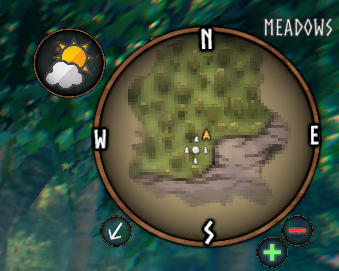
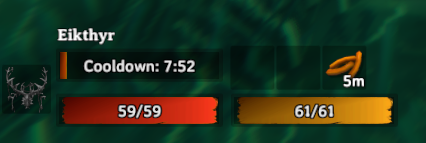
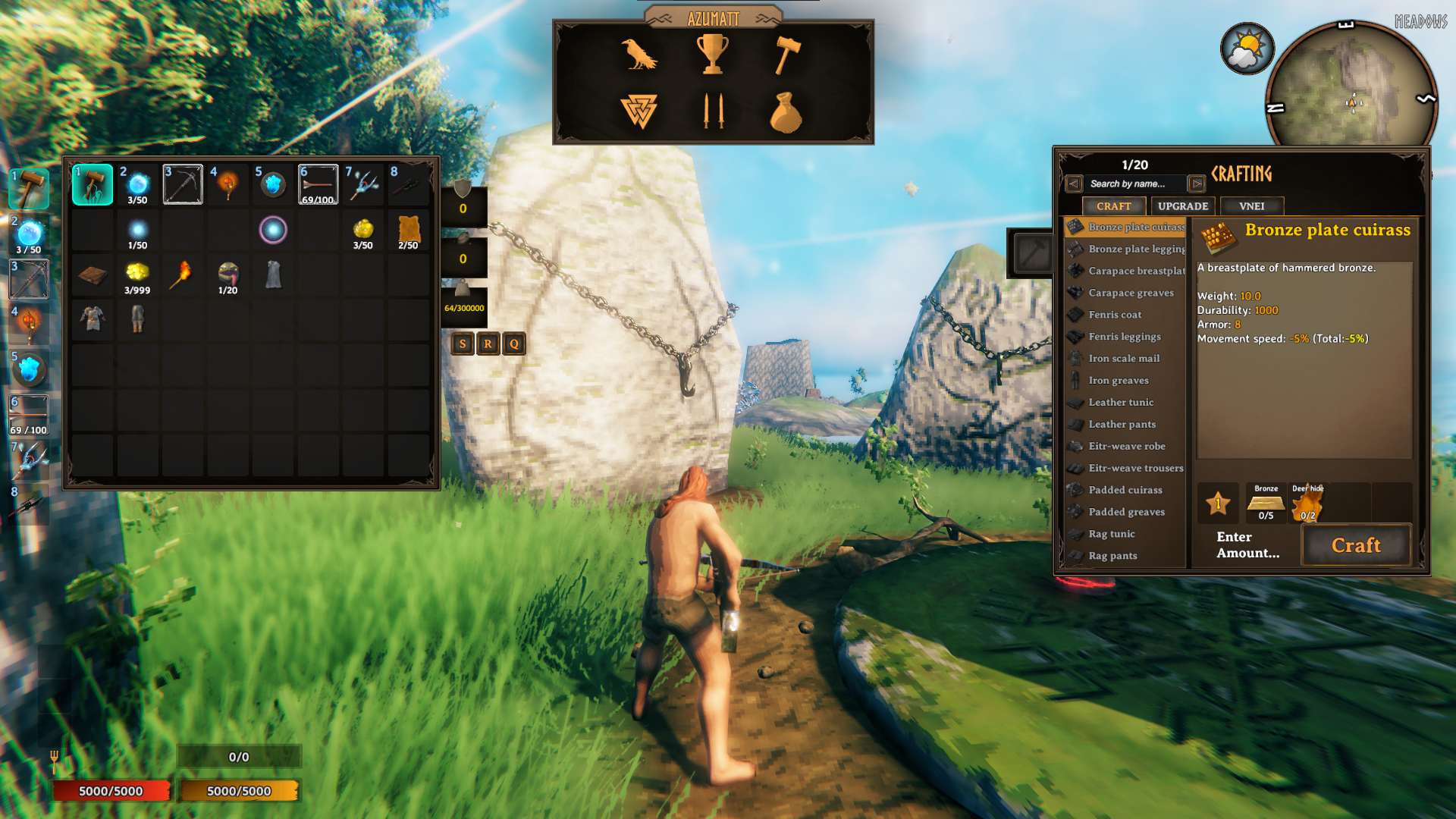
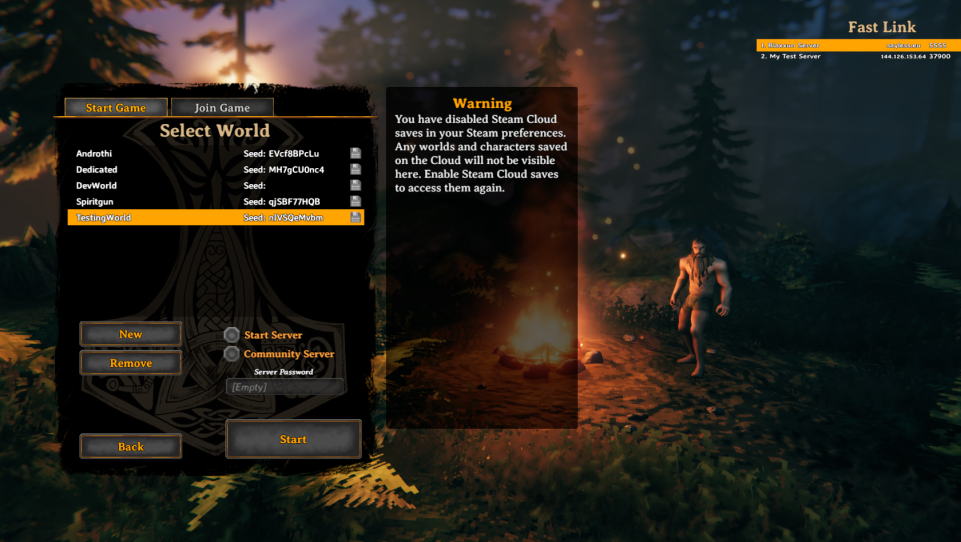
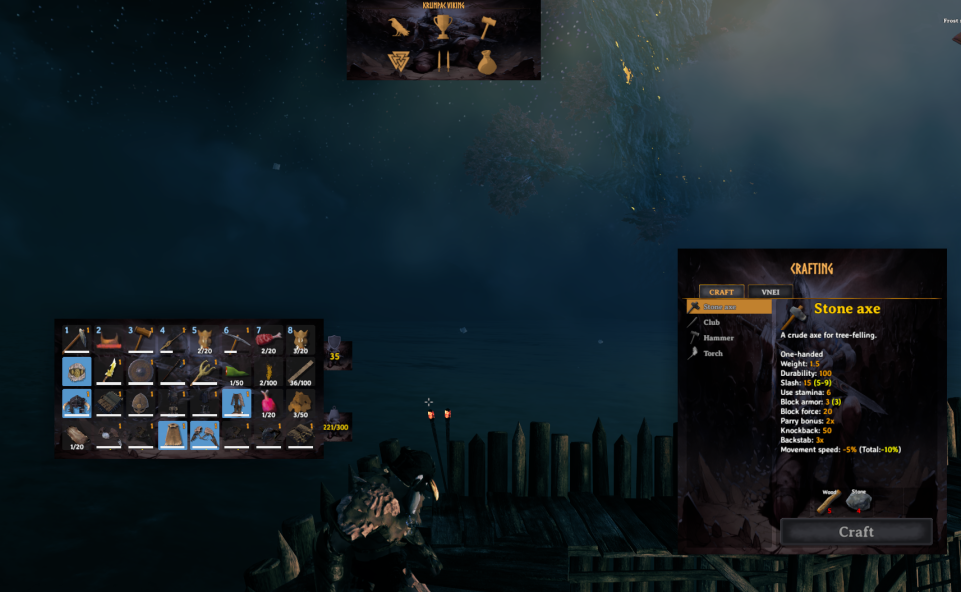
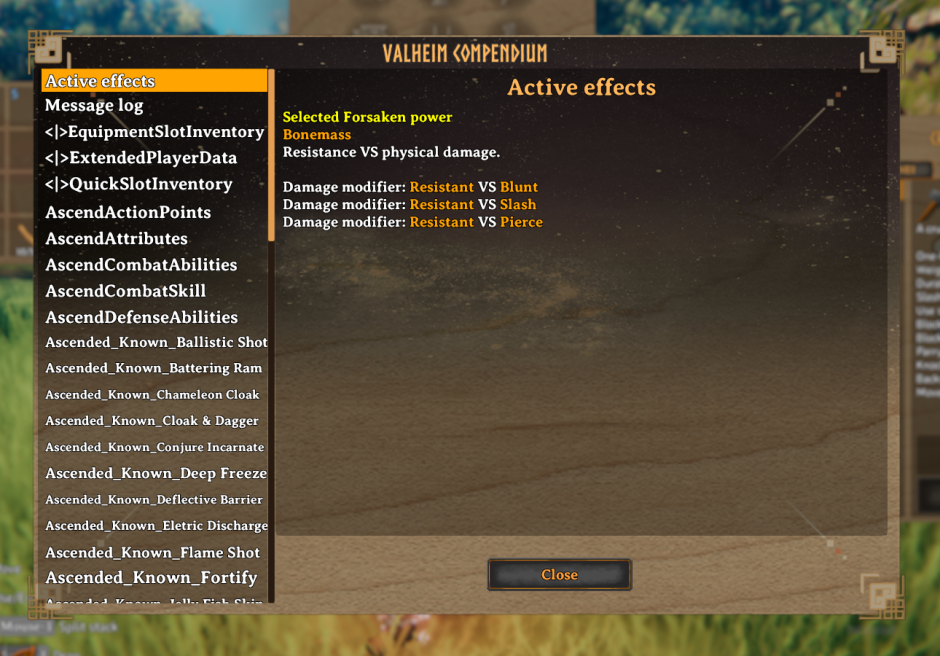
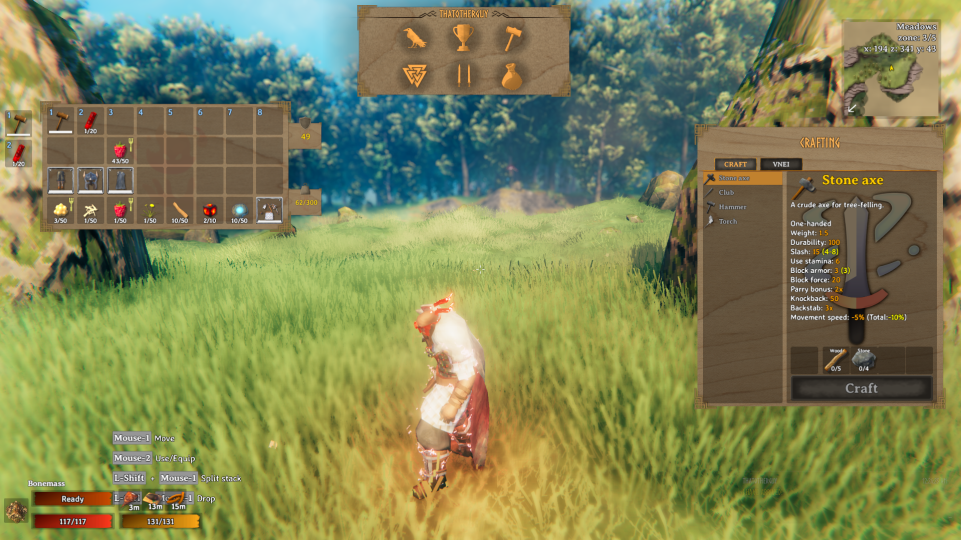
A mod I made to hide the wooden panels, change the color of them, or use your own pngs because I am not fond of them. Optionally move your windows around.
Yes, it works with OdinQOL, AzuExtendedInventory, Randy Knapps EAQs, and BetterUI Reforged.
Client only mod.
It's highly recommended that you configure this mod LIVE using the BepInEx Configuration Manager trust me, it makes your life easier.
Turn on using custom backgrounds to use your own pngs. Must follow the naming convention below in the Configuration Options section. Only one
instance of the files can be in the cache folder at one time. The files live in BepInEx/cache/Azumatt.MinimalUI_Backgrounds and can be anywhere in the BepInEx/cache folder (even inside subfolders)
and the mod will find them. By default, the Auga skin is unzipped since it's the most popular. If you have them in the cache folder and they are unzipped (in png format with correct names), but your background is still transparent,
remember to change your alpha value to be fully visible. If you have Jewelcrafting installed, you can use the JC UI toggle to use the JC UI instead of the vanilla UI.
Coming from an older version? If Azumatt.MinimalUI_Backgrounds is still in your BepInEx/config folder, the mod moves the whole folder to BepInEx/cache for you. Loose pngs left in the config folder still load, the cache folder is just checked first.
Example Images/Videos
Images


Videos (Click to play)


Configuration Options
-
Alpha [Not Synced with Server]
- Alpha for the backgrounds. Lower = more transparent. Optionally set a color here. The closer you get to white, the closer you get to vanilla UI or your custom background being visible.
-
Use Custom Backgrounds [Not Synced with Server]
- Turn on using custom backgrounds from the cache folder (
BepInEx/cache). Must follow the naming convention below. Only one instance of the files can be in the cache folder at one time. The files can be anywhere in the cache folder and the mod will find them. If you have them in the cache folder and they are unzipped (in png format with correct names), but your background is still transparent, remember to change your alpha value to be fully visible.- MUI_SkillsDialogPanel512x512.png
- MUI_SplitDialogPanel256x256.png
- MUI_VariantDialogPanel256x256.png
- MUI_ContainerPanel295x180.png
- MUI_CraftingPanel578x671.png
- MUI_InfoPanel280x90.png
- MUI_PlayerInvPanel295x154.png
- MUI_ServerSelectPanel578x671.png
- MUI_CompendiumPanel440x330.png
- MUI_TrophiesPanel562x329.png
- MUI_BuildMenuPanel512x512.png
- MUI_RemoveCharacterDialog270x100.png
- MUI_BottomWindowPanel512x60.png
-
Things to note
- Remove Character/Name Panel (MUI_RemoveCharacterDialog270x100.png). These are the same size and will be affected by the same image.
- JoinIPPanel/CustomizationPanel use the same image as the Split Dialog Panel, (MUI_SplitDialogPanel256x256.png). These are the same size so it will be affected by the same image.
- New World/Remove World Panel use the same image as the Skills Dialog Panel (MUI_SkillsDialogPanel512x512.png). These are the same size so it will be affected by the same image.
- Haldor's UI is affected by the (MUI_VariantDialogPanel256x256.png) and (MUI_PlayerInvPanel295x154.png) images, as they are the same size for what is needed.
- Turn on using custom backgrounds from the cache folder (
-
Always Open [Not Synced with Server]
- Turn on default game functionality to always have your inventory and crafting windows open when you press TAB.
-
Inventory Scale [Not Synced with Server]
- Scale of Inventory
-
Chest Inventory Scale [Not Synced with Server]
- Scale of Chest Inventory
-
Crafting Panel Scale [Not Synced with Server]
- Scale of Crafting Panel
-
Info Panel Scale [Not Synced with Server]
- Scale of Information Panel
-
Hotbar Scale [Not Synced with Server]
- Scale of Toolbar/Hotbar
-
Hotbar PerRow [Not Synced with Server]
- Number of items per row in the hotbar
-
QuickSlots Scale [Not Synced with Server]
- Scale of QuickSlots (Randy's!)
-
Build Menu Scale [Not Synced with Server]
- Building menu scale
-
Keyboard Shortcut Modifier [Not Synced with Server]
- The shortcut needed to be held down while clicking on the panels to resize or move them.
-
Inventory Position [Not Synced with Server]
- Current position of the Inventory
-
Chest Inventory Position [Not Synced with Server]
- Current position of the Chest Inventory
-
Crafting Panel Position [Not Synced with Server]
- Current position of the Crafting Panel
-
Info Panel Position [Not Synced with Server]
- Current position of the Info Panel
-
QuickSlots Position [Not Synced with Server]
- Current position of the QuickSlots
-
Build Menu Position [Not Synced with Server]
- Current position of the Build Menu
-
JC UI Toggle [Not Synced with Server]
- If set to true, the JC UI will be used when JC is installed. This config option is dependant on the mod being present. Reboot your game for the toggle to take effect.
-
Enable Custom Minimap [Not Synced with Server]
- If set to On, you will use the MinimalUI minimap skin. Reboot your game for the toggle to take effect properly.
-
Custom Minimap Rotation [Not Synced with Server]
- If set to On, the minimap will rotate with the player's looking direction.
Installation Instructions
You must have BepInEx installed correctly! I can not stress this enough.
Windows (Steam)
- Locate your game folder manually or start Steam client and : a. Right click the Valheim game in your steam library b. "Go to Manage" -> "Browse local files" c. Steam should open your game folder
- Extract the contents of the archive into the game folder.
- Locate Azumatt.MinimalUI.cfg under BepInEx\config and configure the mod to your needs
If you are using a mod manager, just download the mod. Make sure the dll ends up in your BepInEx/plugins folder somewhere and the images are unzipped, named correctly and somewhere in BepInEx/cache folder.
Feel free to reach out to me on discord if you need manual download assistance.
Author Information
Azumatt
DISCORD: Azumatt#2625
STEAM: https://steamcommunity.com/id/azumatt/
For Questions or Comments, find me in the Odin Plus Team Discord or in mine:

