 Install with Gale
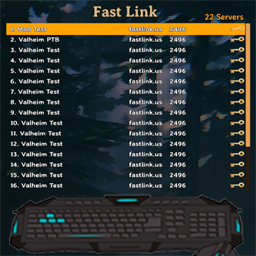
Vanilla UI to quickly join servers configured in a YAML file.
Client side mod with live updated configurations via Azumatt.FastLink_servers.yml. You can put it on your server too if you want the extra stuff, see the Server section at the bottom.
Configuration Options
[UI]
- Position of the UI [Not Synced with Server]
- Sets the anchor position of the UI. You can also just drag it by the title.
- Default value: 429, 172
- Sets the anchor position of the UI. You can also just drag it by the title.
- Position of the Merch UI [Not Synced with Server]
- Sets the anchor position of the Merch UI.
- Default value: -152, 270
- Sets the anchor position of the Merch UI.
- LocalScale of the UI [Not Synced with Server]
- Sets the local scale of the UI. This is overall size of the UI. Defaults to vanilla JoinGame UI size. I prefer 0.85, 0.85, 0.85
- Default value: 1, 1, 1
- Sets the local scale of the UI. This is overall size of the UI. Defaults to vanilla JoinGame UI size. I prefer 0.85, 0.85, 0.85
[General]
- Sort List Alphabetically [Not Synced with Server]
- Turn off to keep the order from your yml file instead.
- Default value: On
- Turn off to keep the order from your yml file instead.
- Show Password Prompt [Not Synced with Server]
- Shows a password prompt when joining a server
- Default value: Off
- Set to On if you want to still show the password prompt to the user. This is for servers that have a password but don't wish to use the file to keep the password.
- Default value: Off
- Shows a password prompt when joining a server
- Show Password In Tooltip [Not Synced with Server]
- Shows the password inside the tooltip when hovering a server listing
- Default value: Off
- Shows the password inside the tooltip when hovering a server listing
- Hide the IP in the panel [Not Synced with Server]
- Turn on to hide the IP in the connection panel at the main menu. Also hides it in the tooltip. (Streamers mostly)
- Default value: Off
- Turn on to hide the IP in the connection panel at the main menu. Also hides it in the tooltip. (Streamers mostly)
- Number Keys Join Servers [Not Synced with Server]
- Press 1-9 at the main menu to join that server in the list. Hold Shift if you still want the character select screen.
- Default value: On
- Press 1-9 at the main menu to join that server in the list. Hold Shift if you still want the character select screen.
- Remember Character Per Server [Not Synced with Server]
- Pre-picks the character you last used on each server.
- Default value: On
- Pre-picks the character you last used on each server.
- Remember Typed Passwords [Not Synced with Server]
- If you type a password into the prompt and it works, FastLink saves it for that server. If a saved one stops working you get the prompt again.
- Default value: On
- If you type a password into the prompt and it works, FastLink saves it for that server. If a saved one stops working you get the prompt again.
- Auto Join Last Server [Not Synced with Server]
- Joins the last server you were on when the game starts. You can also just pick a server in its edit window. There's always a 5 second countdown so you can cancel it or turn it off without digging through configs. Holding Shift while the menu loads skips it too.
- Default value: Off
- Joins the last server you were on when the game starts. You can also just pick a server in its edit window. There's always a 5 second countdown so you can cancel it or turn it off without digging through configs. Holding Shift while the menu loads skips it too.
[Features]
- Check Server Status [Not Synced with Server]
- Pings your servers through Steam for online status, players, ping and the mod checks. Turning this off turns off everything that needs it. Game Pass/Xbox doesn't have Steam so it just turns itself off there.
- Default value: On
- Pings your servers through Steam for online status, players, ping and the mod checks. Turning this off turns off everything that needs it. Game Pass/Xbox doesn't have Steam so it just turns itself off there.
- Warn About Mod Mismatches [Not Synced with Server]
- Shows a popup before you join a server your mods don't match. Off just joins.
- Default value: On
- Shows a popup before you join a server your mods don't match. Off just joins.
- Join Queue [Not Synced with Server]
- If a server is full or restarting, FastLink waits and joins you when it can. Off just tries to join like vanilla does.
- Default value: On
- If a server is full or restarting, FastLink waits and joins you when it can. Off just tries to join like vanilla does.
[Server] (only shows up when FastLink is on a dedicated server)
- Publish Mod List
- Lets FastLink players see if their mods match before they join.
- Default value: On
- Lets FastLink players see if their mods match before they join.
- Modpack Code
- A profile code from Gale or r2modman. Players with the wrong mods get a button to copy it.
- Default value: (empty)
- A profile code from Gale or r2modman. Players with the wrong mods get a button to copy it.
- Notice
- Shows at the top of your server's tooltip. MOTD, events, wipes, whatever. Use \n for a new line.
- Default value: (empty)
- Shows at the top of your server's tooltip. MOTD, events, wipes, whatever. Use \n for a new line.
- Restart Times
- Your daily restart times in the server's clock, like 06:00, 18:00. Players see them in their own time.
- Default value: (empty)
- Your daily restart times in the server's clock, like 06:00, 18:00. Players see them in their own time.
- Show Player Names
- Shows who's online in the tooltip. Vanilla only gives a count.
- Default value: On
- Shows who's online in the tooltip. Vanilla only gives a count.
Using it
- Click a server (or press its number) to join. Right-click to edit or delete it. The + adds one, and you can import your vanilla favourites from there too.
- Edits go straight into your yml file. Your comments and the order you had stay put.
- The little icons next to a server: a check means it's up, a red X means it was up and now isn't, and a grey ? means the server isn't answering status checks (usually a closed query port). You can still join the ? ones.
- Servers on a different game version show in red and won't let you join.
- If you mess up the yml, the server count tells you which line broke.
- Works on controller too. RB to focus the list, A join, X edit, Y add, View refresh, B to back out.
Example (default) YAML
# Configure your servers for Azumatt's FastLink mod in this file.
# Servers are automatically sorted alphabetically when shown in the list.
# This file live updates the in-game listing. Feel free to change it while in the main menu.

Example Server:
  address: example.com
  port: 1234
  password: somepassword

Some IPv6 Server:
  address: 2606:2800:220:1:248:1893:25c8:1946
  port: 4023
  password: a password with spaces

Passwordless IPv4 Server:
  address: 93.184.216.34
  port: 9999

# You can optionally change the color of your server name. Does not work for the address and port. Also, can show PvP status.
<color=red>Another IPv4 Server</color>:
  address: 192.0.2.146
  port: 9999
  ispvp: true

# You can specify if a server is crossplay or not. This will show the crossplay's "Shuffle" icon. Please note, this is not fully supported at this time.
Crossplay Server:
  address: 92.183.211.42
  port: 9999
  password: somepassword
  iscrossplay: true
  ispvp: true

# You can specify if a server uses the whitelist for players or not. This will show in the tooltip only.
Whitelisted Server:
  address: 92.183.211.42
  port: 9999
  password: somepassword
  iscrossplay: true
  ispvp: true
  iswhitelisted: true
# Optional extras. character skips the character select screen, description and discord show in the tooltip (right-click a server to edit it or open its discord).
Server With Extras:
  address: 92.183.211.42
  port: 9999
  character: Ragnar
  description: Hardcore PvE, weekly wipes
  discord: https://discord.gg/example
Installation Instructions
You must have BepInEx installed correctly! I can not stress this enough.
Windows (Steam)
- Locate your game folder manually or start Steam client and :
- Right click the Valheim game in your steam library
- "Go to Manage" -> "Browse local files"
- Steam should open your game folder
- Extract the contents of the archive into the BepInEx\plugins folder.
- Locate Azumatt.FastLink.cfg and Azumatt.FastLink_servers.yml under BepInEx\config and configure the mod to your needs
Server
Not needed, it's a client mod. But if you put it on your dedicated server too, players with FastLink get warned about missing or wrong mods before they join instead of after the loading screen. It reads AzuAntiCheat's whitelist/greylist and ServerSync's version checks, so the warning matches what would actually kick them. You also get the modpack code, notice, restart times and player names from the [Server] section above. All of it can be changed while the server is running.
Make sure the query port is open (your game port + 1, UDP). That's how Valheim and FastLink see your server's status at all. If it's closed, players just get the grey ? and none of the extra stuff. Also only works on the Steam backend, so not with -crossplay.
Feel free to reach out to me on discord if you need manual download assistance.
Author Information
Azumatt
DISCORD: Azumatt#2625
STEAM: https://steamcommunity.com/id/azumatt/
Thank you Blaxxun! - Blaxxun YAML contribution
For Questions or Comments, find me in the Odin Plus Team Discord or in mine:

